Advanced search
In the order overview, you can search orders using a query language that lets you search on specific fields, combine multiple conditions, and use operators such as "starts with", "greater than", and "does not exist" — instead of only a free-text search.
How to find the feature
- Open Order handling in the top menu, and select Orders on the left.
- At the top of the page you'll find the search field with the text Search orders... and, to the right of it, a toggle labeled ADVANCED SEARCH as well as a question mark icon.
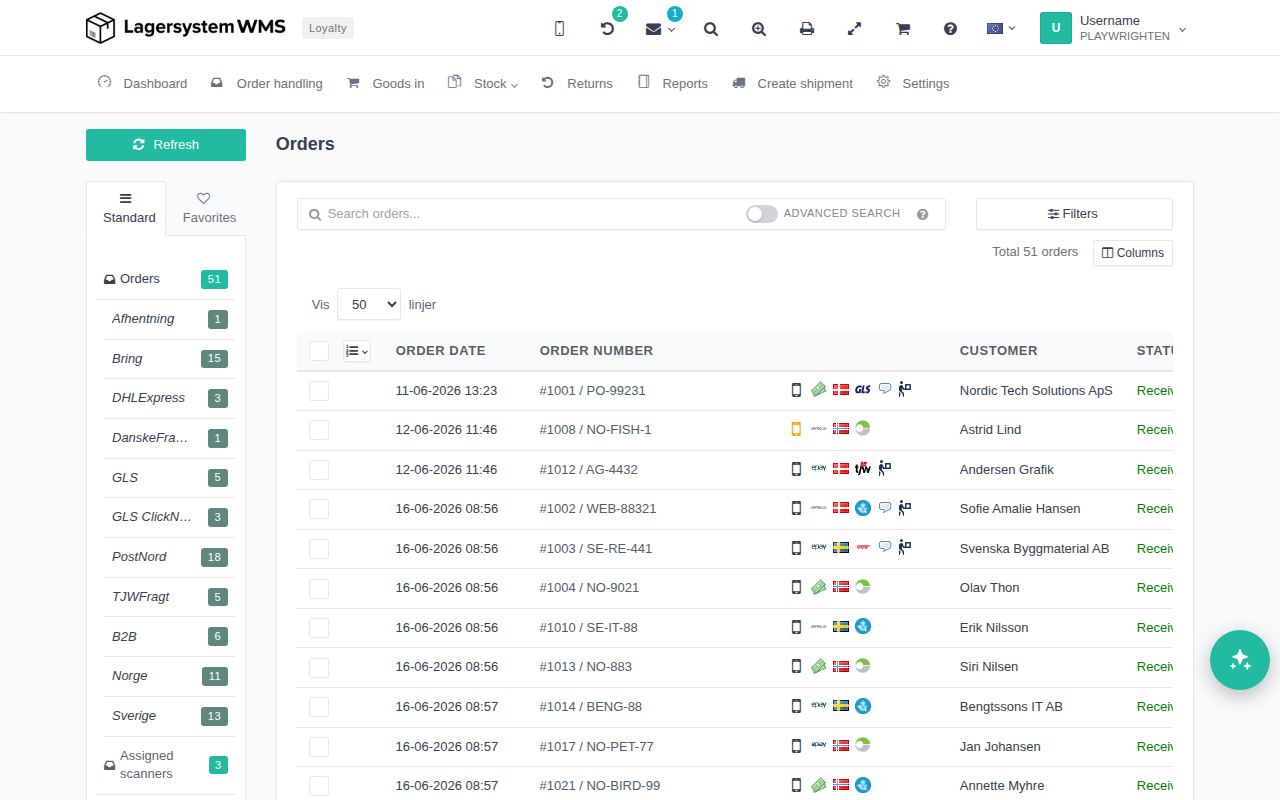
Turn on advanced search
Click the ADVANCED SEARCH toggle to activate the query language. The system remembers your choice until you turn it off again.
With regular search (toggle off), the system searches automatically as you type. With advanced search on, the search is only run when you press Enter.
Search syntax
Click the question mark icon next to the toggle to open a help panel with an overview of the syntax and clickable examples.
A query is written as field:value, and multiple conditions can be combined. These operators are supported:
| Syntax | Meaning |
|---|---|
field:value | The field matches the value |
field:=value | The field matches the value exactly (exact match) |
field:a..b | The field's value lies in the range from a to b |
field:>x, field:<x, field:>=x, field:<=x | Comparison (greater than, less than, greater than/equal to, less than/equal to) |
name:Han* | Wildcard search ("starts with") |
field:* / -field:* | The field is filled in / the field is empty |
-field:value, NOT … | Negation — excludes results that match |
a AND b, a OR b, (…) | Combine multiple conditions, optionally with parentheses |
"multiple words" | Search for an exact phrase in quotation marks |
As you type, the system suggests matching field names and values in a dropdown list — use the arrow keys to navigate, Enter or Tab to select, and Esc to close the list. The query is also color-coded below the search field, so you can see how it has been interpreted. If the query can't be interpreted, an error message is shown below the search field.
Searchable fields for orders
The help panel shows an overview of which fields can be searched for orders, including:
| Field | Description |
|---|---|
id | Order ID |
ref | Order reference |
name | Customer name |
company | Company name |
deliveryName | Delivery address name |
deliveryCompany | Delivery address company |
email | |
deliveryEmail | Delivery address email |
phone | Phone number |
deliveryPhone | Delivery address phone number |
cvr | CVR number |
cargo | Carrier |
cargoService | Carrier service |
country | Country |
deliveryCountry | Delivery address country |
zip | Postal code |
deliveryZip | Delivery address postal code |
subsite | Subsite |
ordertype | Order type |
note | Note |
internalNote | Internal note |
deliveryNote | Delivery note |
scanner | Scanner |
sticker | Sticker/label |
item | Item on the order |
item.itemnumber | Item number |
item.title | Item name |
item.barcode | Barcode |
item.supplier | Supplier |
item.supplierItemnumber | Supplier's item number |
item.costprice | Cost price |
item.weight | Weight |
item.category | Item category |
Click one of the examples in the help panel to automatically insert it into the search field, turn on advanced search, and run the search immediately.