Finish your stock count
Have you scanned your items – and want to make sure all your data is transferred to inventory adjustment in your accounting system or shop. You can watch the video or follow the guide below.
Watch the video guide
Go to your stock count
We need to start by going back to the stock count you have created. Click on the magnifying glass.
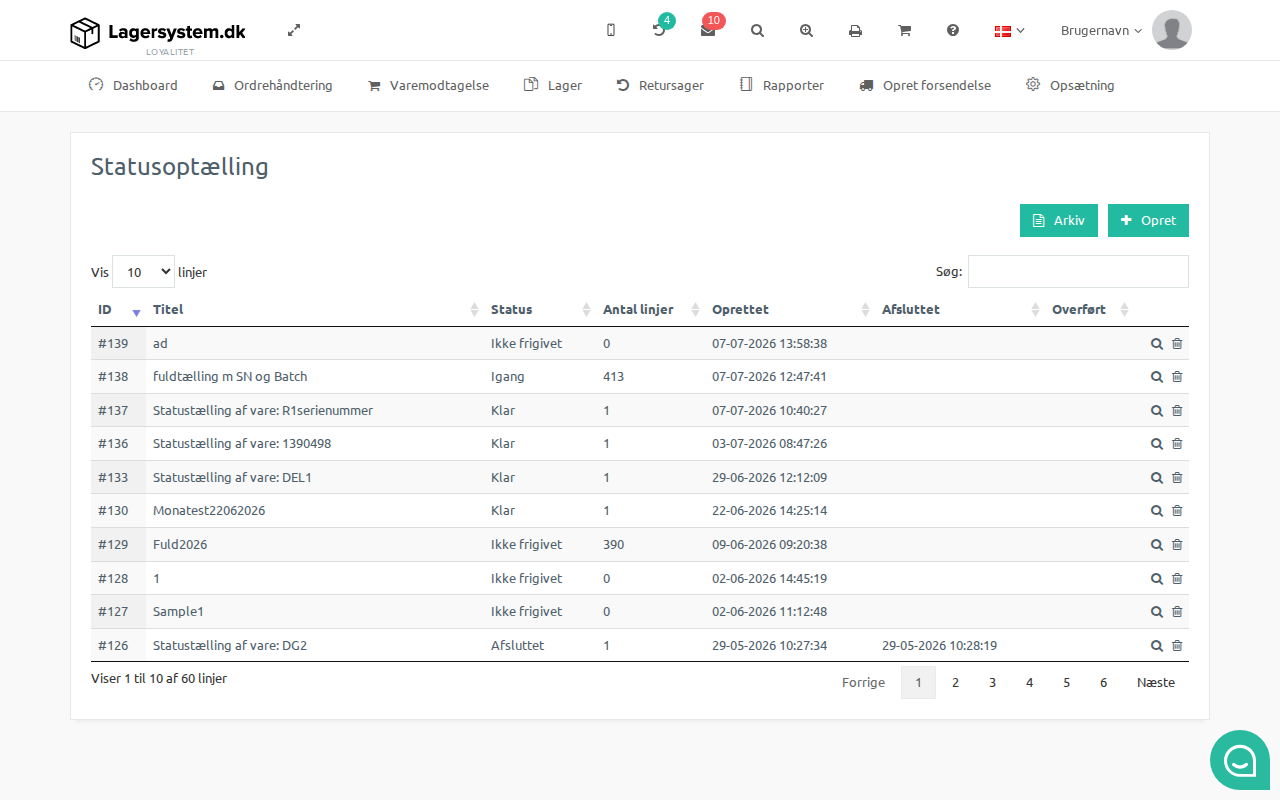
Click on your stock count.
Sort by differences
Here you will get an overview of the expected stock number and number of counted items. It can be a good idea to sort by differences to see if there are any inputs that stand out significantly.
Sort by Differences.
View log for individual counts
You can always click on the magnifying glass to see what input has been added to the count for an individual item.
Click on the magnifying glass to view the log of item scanning.
Add or edit in the count
When you click on the magnifying glass, you can see what input has been added. Here you can manually add or subtract X number of items. You can also delete a scan from the list. If you are wondering why there are scanner names in the image, it is because scanner users have been created in Lagersystem –> Setup –> General setup –> Users.
Add or edit scan input.
Finish stock count
When the stock count is complete, you need to click on Finish stock count. This locks the input in your stock count – but it does not transfer your values to inventory adjustment.
Finish stock count.
Transfer to inventory adjustment
When you have finished your stock count, you can click on the Transfer to inventory adjustment button.
Transfer to inventory adjustment.
Go to inventory adjustment
Your stock count is transferred to inventory adjustment so you can confirm the adjustments to your stock. Go to Inventory and Inventory Adjustment.
Go to Inventory Adjustment.
View the list of adjustments
Here you will be able to see a list of all the adjustments that will be made to your stock. You can also delete input or manually enter values if you discover that something is missing.
Inventory adjustment list with options to delete or manually add values.
Run inventory adjustment
You transfer your inventory adjustment to your accounting system or shop by clicking the Run Inventory Adjustment button.
NOTE: Please be aware that if you use the accounting system e-conomic, you need to download a CSV file that you can import into your system. Read more about how here.
Download CSV from the stock count
From the dropdown menu on your stock count you can download the count data as a CSV file. There are now two language options:
- CSV (Danish) – column headers and decimal numbers in Danish format (comma as decimal separator).
- CSV (English) – column headers in English and decimal numbers in English format (period as decimal separator).
The same applies to the download of scan transactions, which are also available in both Danish and English versions.
Did you know that you can do ongoing stock counts at low stock levels?
With Lagersystem.dk you can use the "Ongoing stock count" feature. This means that the warehouse employee can perform a stock count while picking an order.
It is activated if, after the current order, only one item remains. The scanner then shows a simple pop-up offering the option to confirm the current stock status and the option to update it if it does not match.
The "Ongoing stock count" feature can be enabled in Lagersystem by clicking on "Setup" -> "Warehouse setup" -> and then clicking on the "Ongoing stock count" tab. Here you tick "enable". Remember to save the settings.