Template designs – choose a pre-filled design for your templates
When you create or edit a print or email template, you can start from one of several ready-made designs instead of building the layout from scratch. Each design is shown as a preview built from real data from your solution, so you can see exactly what it will look like before you choose it.
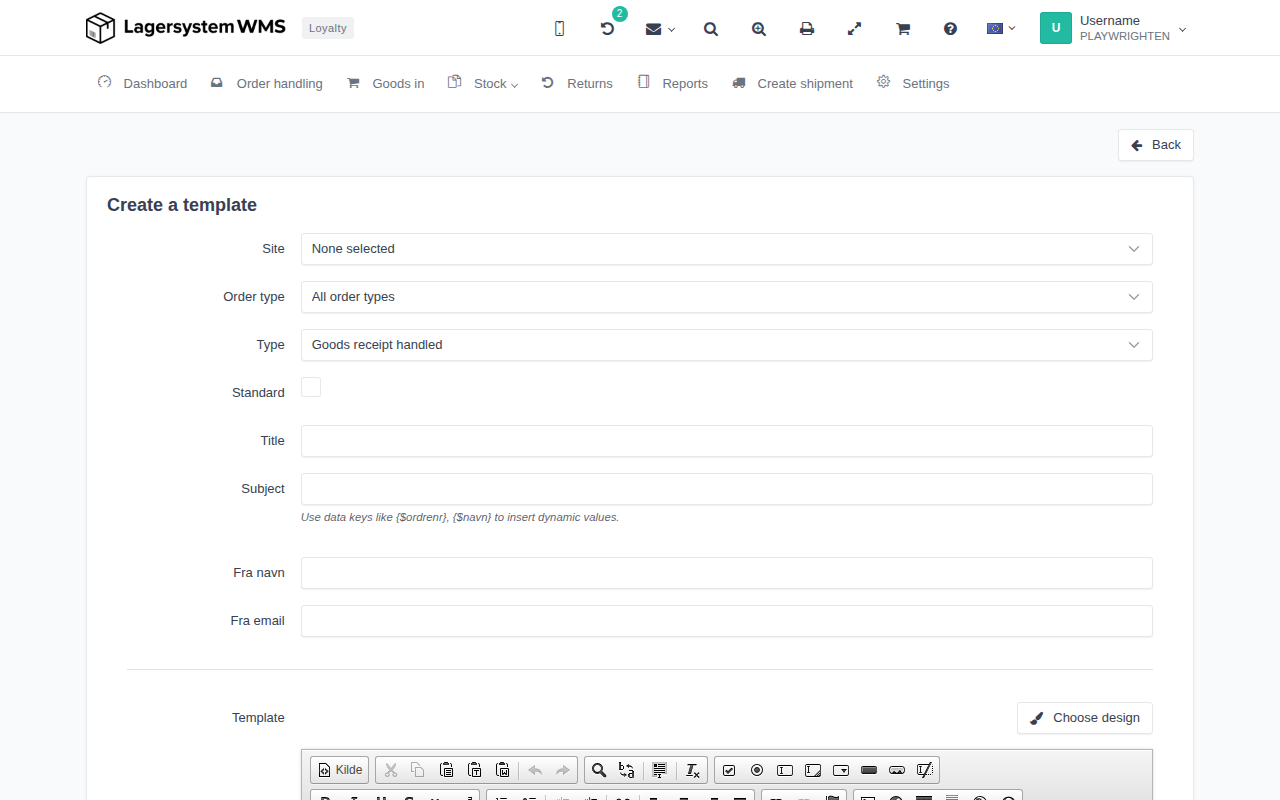
How to open the design gallery
- Go to Settings and open a template under print or email templates (either an existing template, or create a new one).
- On the editing page you'll find the Choose design button next to the Template field.
The button only appears when the selected Type has one or more designs on offer – not all template types have one.
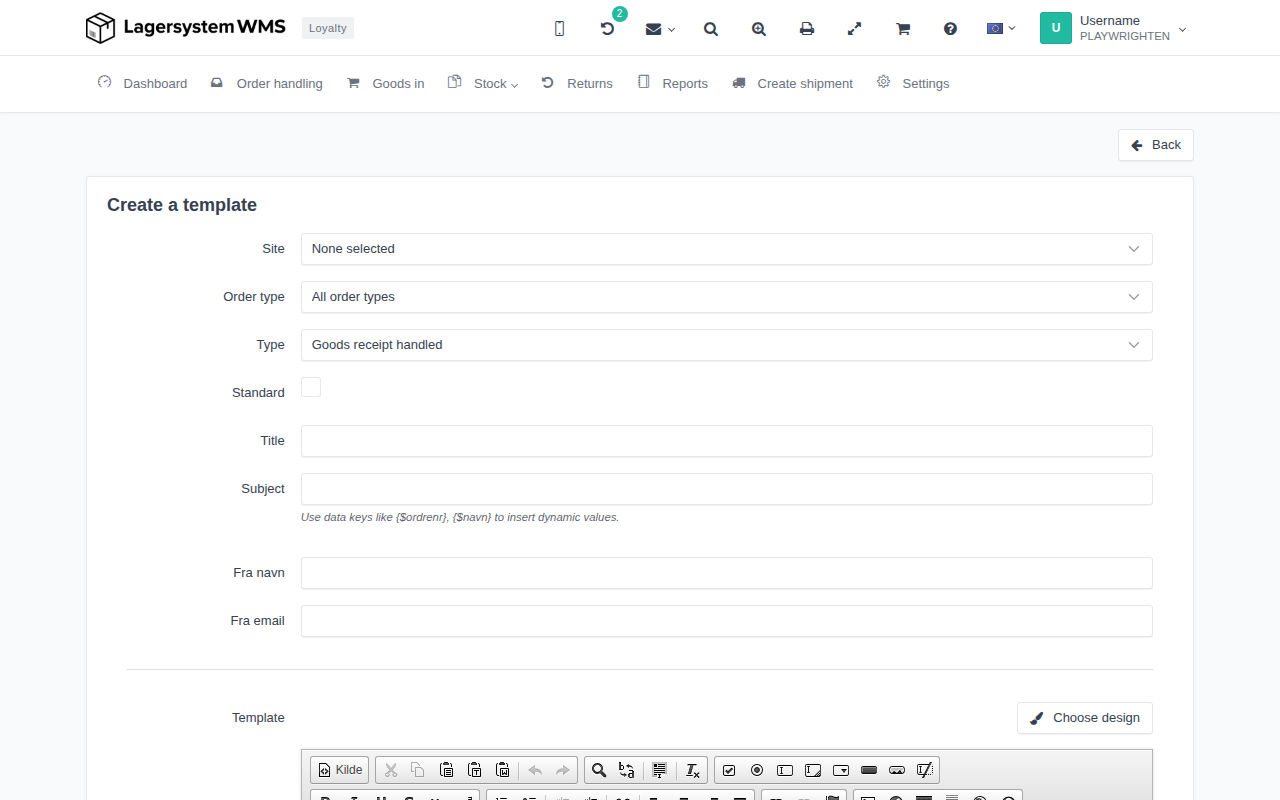
Choose a design
When you click Choose design, the Choose design window opens with the text "Pick a ready-made layout to start from. It replaces the content of the editor, which you can then edit and save as usual." Below this, the designs are shown as cards with a thumbnail preview, a title and a short description.
There are six designs, and which of them are offered depends on the template's type:
- Compact – "Dense black-and-white working sheet. As many lines on a page as will fit, no decoration."
- Modern – "Email-oriented layout with a coloured header, generous spacing and totals under the lines."
- Formal – "Formal document with sender and recipient blocks and a ruled line table."
- Sidebar – "Every detail in a tinted left column, with the lines filling the rest of the width."
- Receipt – "Narrow centred receipt with dashed rules. Works on small formats and on a phone."
- Label – only offered for template types that are printed in label format, and it automatically sets the page size to match when you apply it.
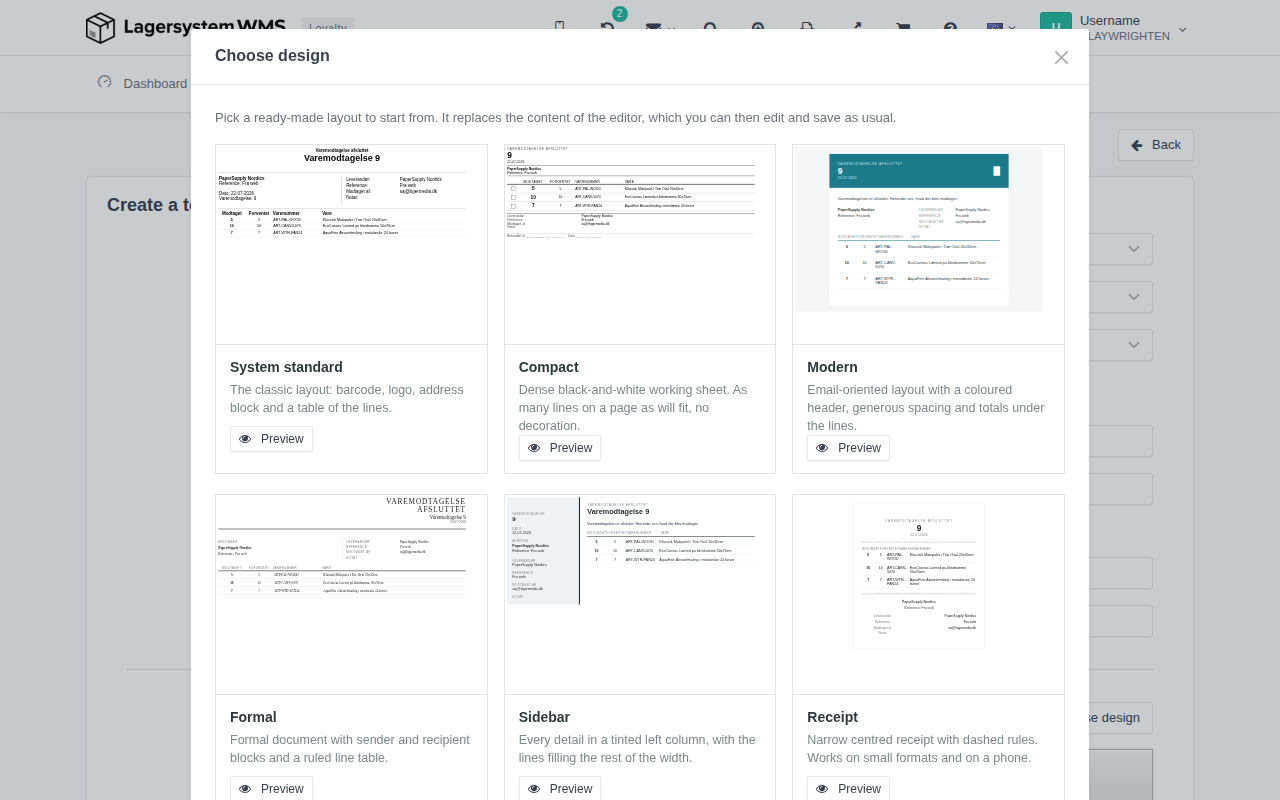
Preview
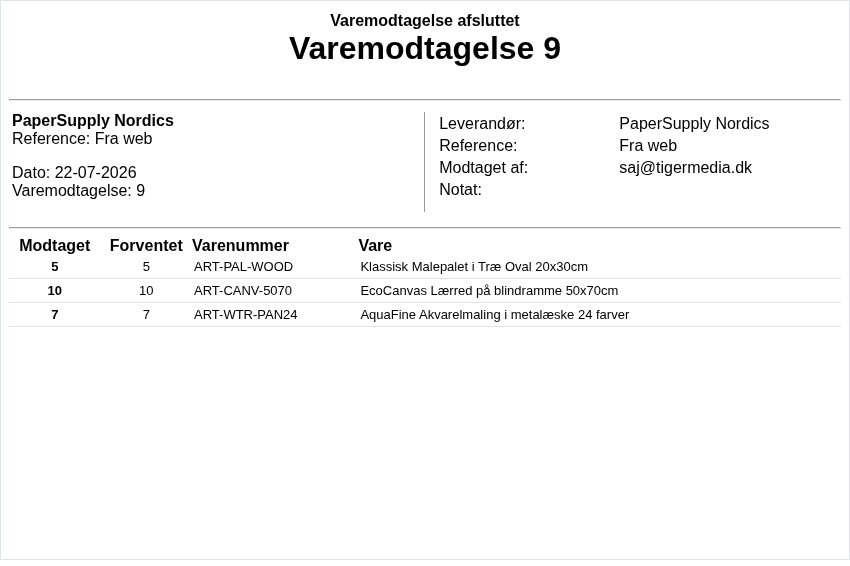
Click Preview on a design card to see the design at full size. The preview is not a static drawing – it's generated from a real order/registration in your solution, so you see actual item numbers, names and totals in that particular layout. From there you can go back to the overview of designs, or choose the design you've settled on.
Apply a design
When you choose a design, its content is placed into the template's editor in place of what was there before. Nothing is saved automatically at this point – the template remains unchanged in the system until you save it yourself, so you can safely try a design and undo it if it doesn't fit.