ABC zones
ABC zones classify the sections in a location series into A (primary), B, and C zones. The zones are used by the analytical ABC reports and by the ABC relocation report, which uses them to suggest moves that place fast movers in the primary zones.
How to find ABC zones
- Go to Reports → ABC report.
- Click Manage ABC zones (the button is called Create ABC zones if zones have not yet been set up for your location series).
From the ABC zones page you can always return to the report via the Back to ABC report button in the top right corner.
Classify sections into a zone
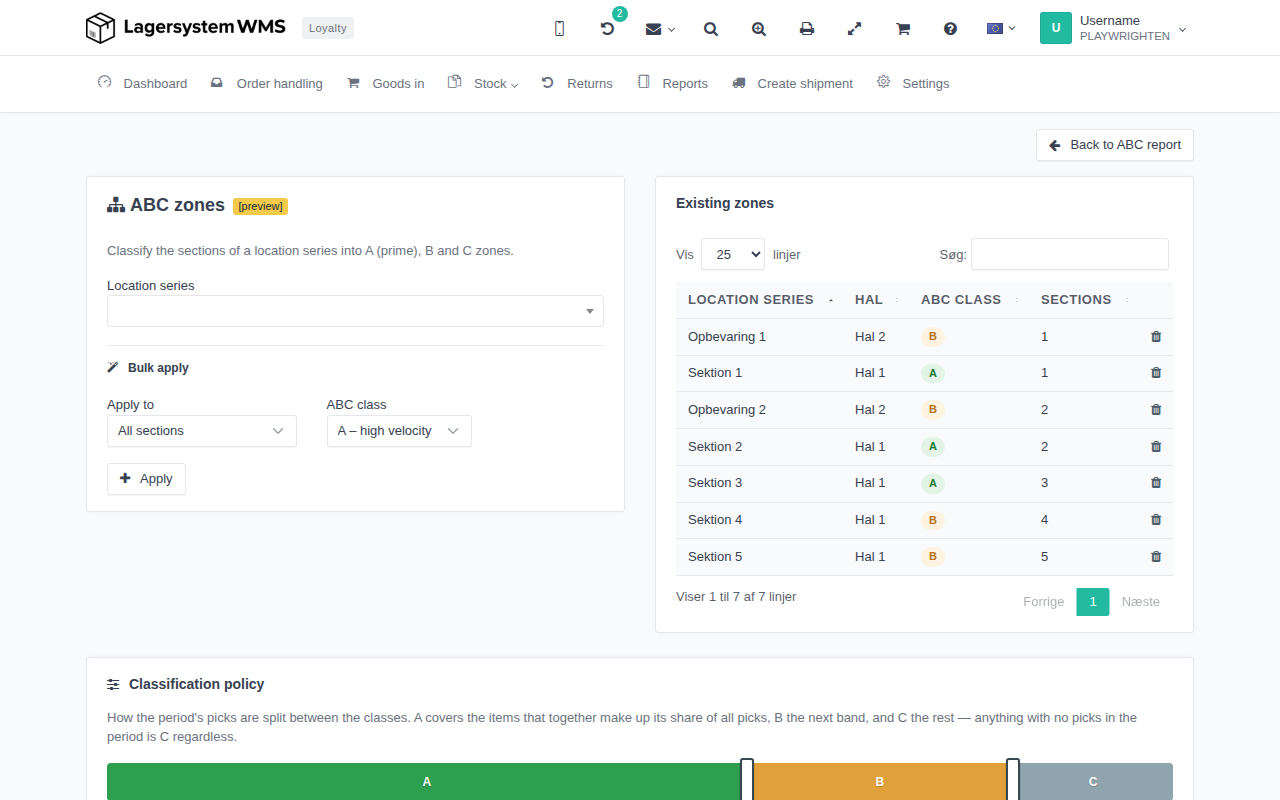
First select the location series you want to classify in the Location series field. Once a series is selected, a grid is shown with one cell for each section in the series. Click a cell to cycle its class in the order none → A → B → C → none, then click Save to save the distribution for the selected series.
Bulk apply
Under Bulk apply you can set a class on multiple sections in a single operation, instead of clicking them one by one:
- Apply to — choose whether the class should be set on all sections in the series, on the first/last/middle N sections, or on a specific range of sections (specified with a from and to section).
- ABC class — the class (A, B, or C) to apply.
Click Apply to save.
Existing zones
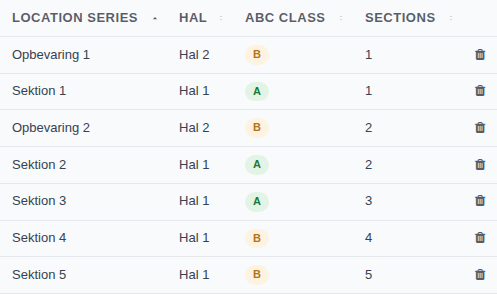
The Existing zones panel shows all zones already set up, in a table with the columns Location series, Hall, ABC class, and Sections. You can search the list and page through it (Previous/Next), and you can delete a zone group again via the trash-can icon in the last column.
Classification policy
The Classification policy panel controls how the period's picks are distributed among the classes: A covers the items that together make up its share of all picks, B the next band, and C the rest — anything without picks in the period is C regardless.
The distribution is set with a bar divided into A, B, and C shares. Drag the two handles between the bars to move the boundaries between classes, or click directly on the bar to move the nearest handle. Then click Save to save the new policy.
Visual zoning
Visual zoning draws your actual warehouse based on a layout plan: place your location series on a floor plan once, and you can then paint A/B/C zones directly onto it — and get pick routes that follow the correct walking route.
If a warehouse layout plan has not yet been set up for the warehouse, the page instead shows a message stating that a layout must be set up first, with a link to do so.
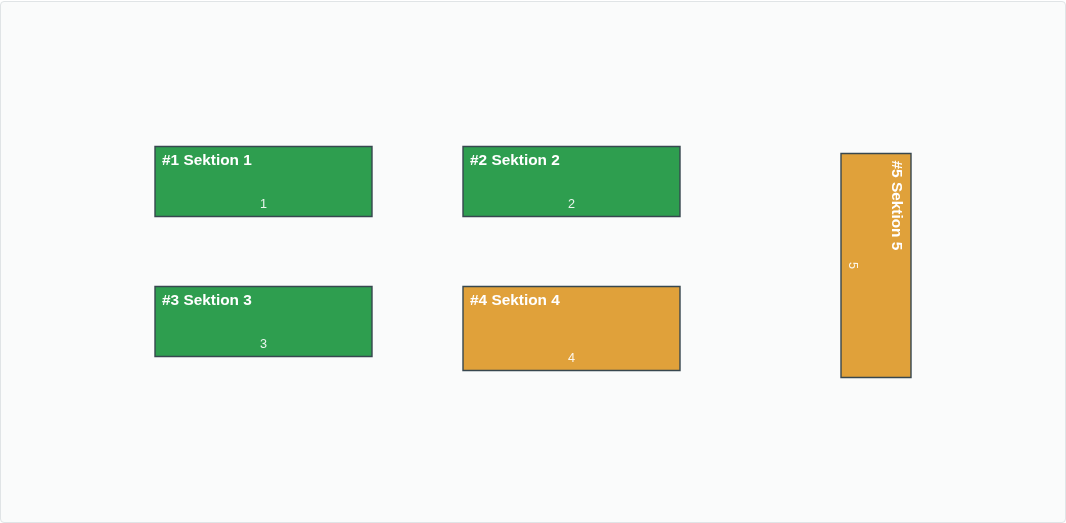
Once a plan exists, the page shows a map of the warehouse, where each location series is divided into one cell per section and colored according to its ABC zone (green for A, orange for B, gray for unzoned sections). You can drag a selection area across the map to select cells across multiple location series at once and then set a class on the entire selected area together.