Shipping packages
A shipping package is the physical package (box, bag, pallet, etc.) an order is packed into before it's shipped. Each package has a package type (packaging) with dimensions and weight, contains order lines, and can have a shipping label attached. When the feature is enabled, all order lines on an order must be packed into a shipping package before the order can be handled.
How to set up shipping packages
- Click Settings in the top menu.
- Select Shipping packages under Shipping settings.
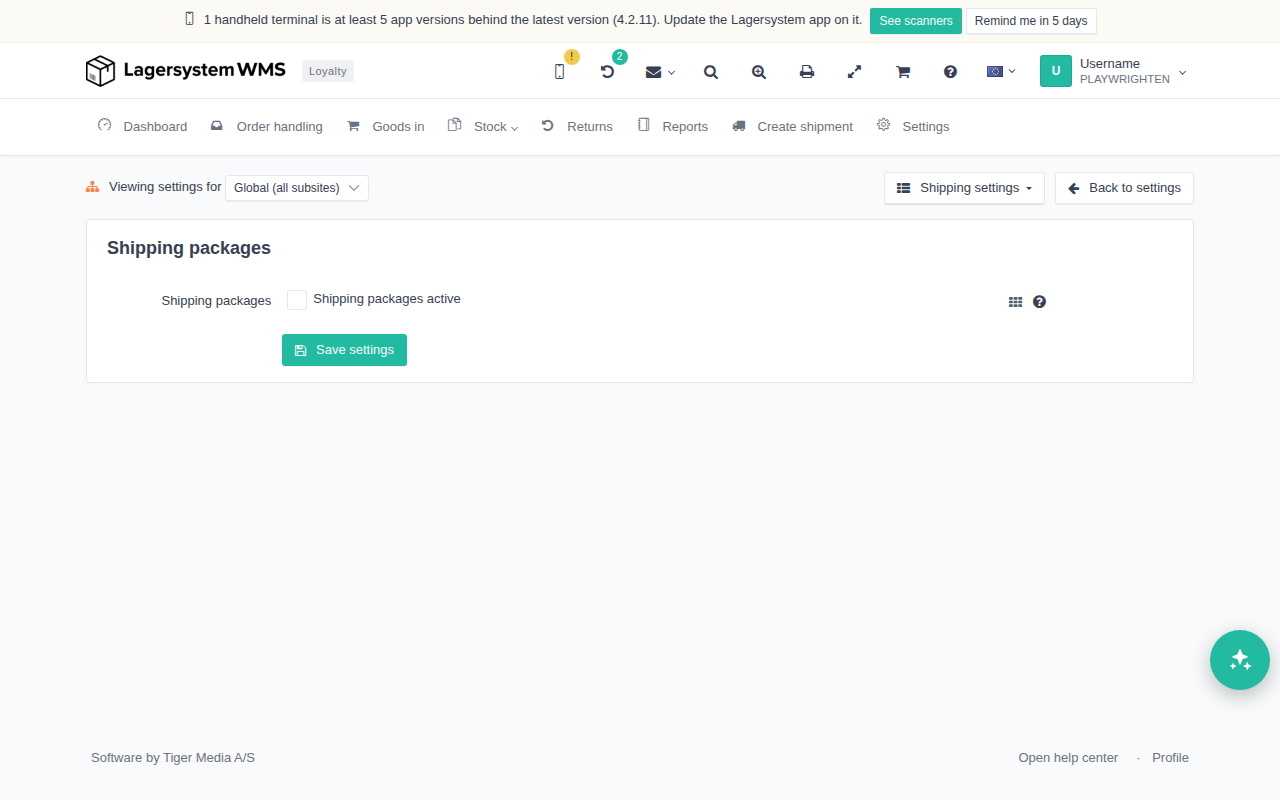
On the page, you can first choose which level the setting should apply to, in the Viewing settings for dropdown (e.g. "Global (all subsites)").
In the Shipping packages panel, check Shipping packages active to turn on the feature, then click Save settings.
At least one packaging type must exist before shipping packages can be used. Create a packaging type under the packaging setup if you don't already have one.
How to use shipping packages
When the feature is enabled, the order's order lines are packed into shipping packages while the order is being handled. For each package, you can:
- Create a New shipping package, or select shipping package among the packages already created on the order.
- Pack in the selected shipping package, or pack the rest in this package, when the remaining items on the order should go into the same package.
- Delete shipping package, if the package is empty.
All order lines must be packed into a shipping package before the order can be handled — if there are items that aren't packed, handling of the order will be blocked until they've been assigned to a package.
On the order itself, the created shipping packages are shown in a table with the columns #, Created, Created by, Name, Type, Number of units, and Label:
- Next to the number of units, you can open the package's contents to see which items it contains.
- In the Label column, you select from a dropdown which shipping label the package should use, or leave it without a label.
- If the package has a barcode attached, the label can be printed directly from the table, and the package's packing slip/label can always be opened as a PDF.
Click Save shipping packages once you've attached labels to the packages, to save the changes.