Print-as-you-go: one shipping label per box
Print-as-you-go prints a shipping label for each box (parcel) the moment it is finished picking, instead of collecting all the labels for the order and printing them together at the end.
The feature is not a simple on/off setting for the individual order: an order can only use print-as-you-go when every line on the order makes up a whole number of parcels. That is what makes a finished box unambiguous. How many labels an order ends up getting is decided by the parcel plan alone — several parcels can be combined into one package.
Finding the page
- Click Settings in the top menu.
- Open the Print-as-you-go page under the Print setup section.
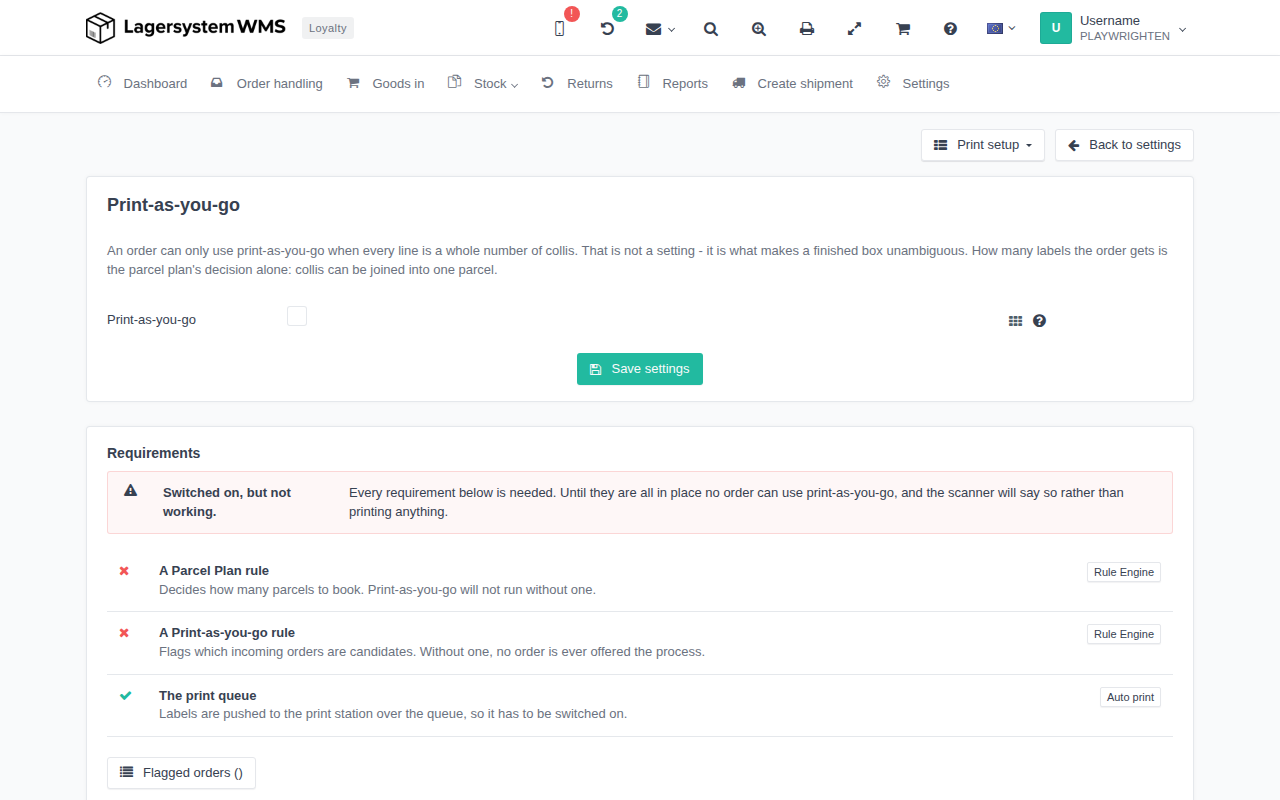
Turning the feature on
The page has exactly one setting: the Print-as-you-go checkbox. Tick it and click Save settings to activate the feature.
Ticking the checkbox does not automatically mean that orders actually start using print-as-you-go — that also requires the requirements below to be met.
Requirements
Below the setting, the Requirements panel shows whether print-as-you-go is actually working right now. There are three status lines, each marked with a green checkmark or a red cross:
- A Parcel Plan rule — decides how many parcels should be booked for an order. Print-as-you-go will not run without this rule. The Rule Engine button leads to the rule.
- A Print-as-you-go rule — flags which incoming orders are candidates for the feature. Without the rule, no order is ever offered to the process. The Rule Engine button leads to the rule.
- The print queue — labels are pushed to the print station through the print queue, so it has to be switched on. The Auto print button leads to that setting.
At the top of the panel an overall status is shown:
- If the setting is switched off, the page shows Switched on, but not working (or the corresponding "switched off" message), and none of the rows below matter yet.
- If the setting is switched on, but one or more requirements are missing, a red warning is shown stating that the feature will not work until all three are met.
- If all three requirements are met, a green confirmation is shown that print-as-you-go is active.
As long as just one requirement is missing, no order can use print-as-you-go, and the scanner will say so rather than printing anything.
Flagged orders
At the bottom of the page, the Flagged orders button — with the current count in parentheses — shows how many orders are currently flagged as candidates for print-as-you-go. Click the button to open the list of these orders.