Track print history down to the exact label
The print queue doesn't just show which order, goods receipt, or other source a print job belonged to — it can now also be narrowed down to the exact piece that was sent to print, e.g. one specific shipping label out of several on the same order.
How to find the print queue
- Go to Print Queue (
/tools/printqueue).
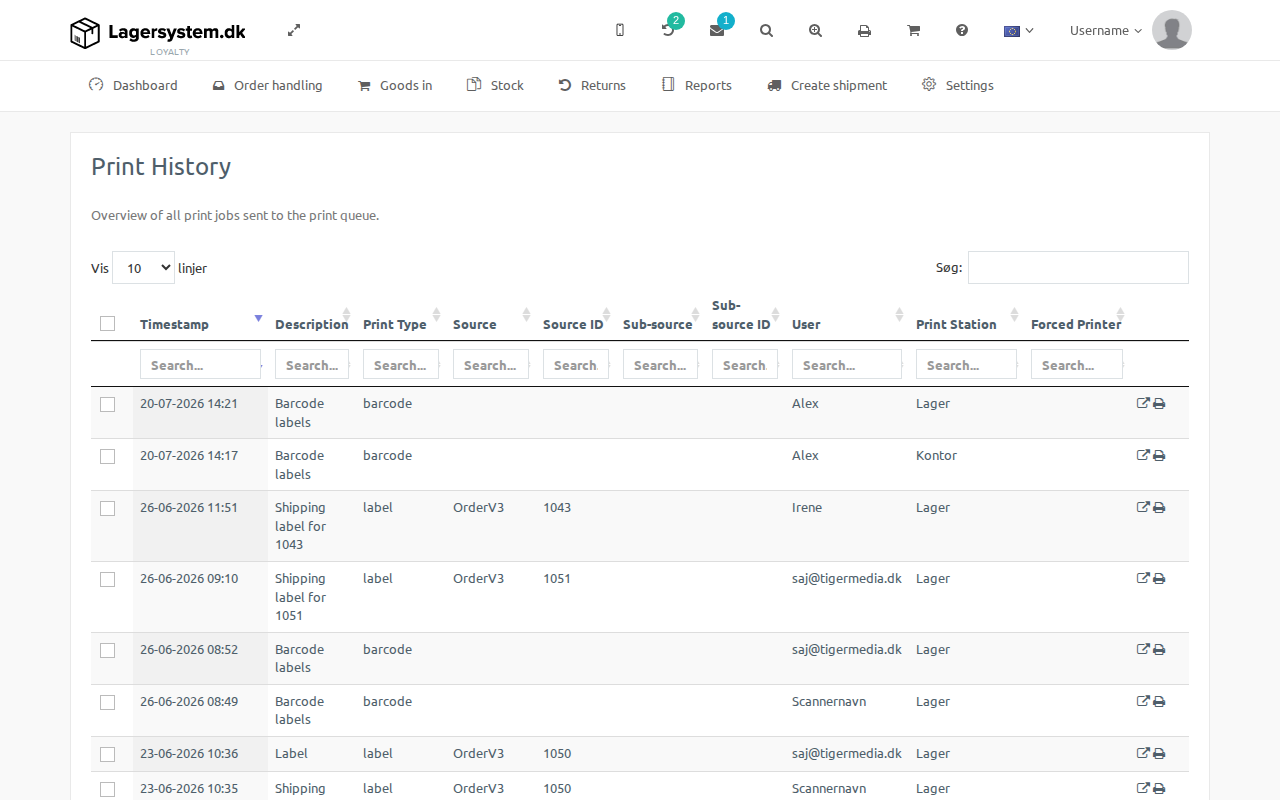
The Sub-source and Sub-source ID columns
In addition to the Source and Source ID columns, which identify the order, goods receipt, or similar that a print job originates from, the table has the columns Sub-source and Sub-source ID. These identify the specific object that was printed when a source covers several printable items — e.g. which of an order's several shipping labels a given print job was for.
Just like the other columns, Sub-source and Sub-source ID each have their own search field in the table's filter row, so the list can be narrowed down to show only the print history for one specific object.
Jump straight to the history for one label
In the label history tables (e.g. on an order's shipping information), there is now a small checkmark icon among the label row's action icons:
- If the icon is an active link, the label has been sent to print at least once. Hover over the icon to see how many times and when it was last sent.
- If the icon is grey and without a link, there is no print history for that label.
Clicking the active icon takes you to the print queue and automatically filters the list down to that exact label via the Sub-source and Sub-source ID columns. If the page doesn't have a built-in print queue tab, the standalone print queue page opens instead with the same filter already set.