Choose and rearrange columns in the order list and stock list
The order list and stock list can be customized so you only see the columns you need, in the order you prefer. This setup is personal and only applies to you — it does not affect your colleagues.
How to open the column picker
- Go to the order list (Order handling) or the stock list.
- Click the Columns button above the table.
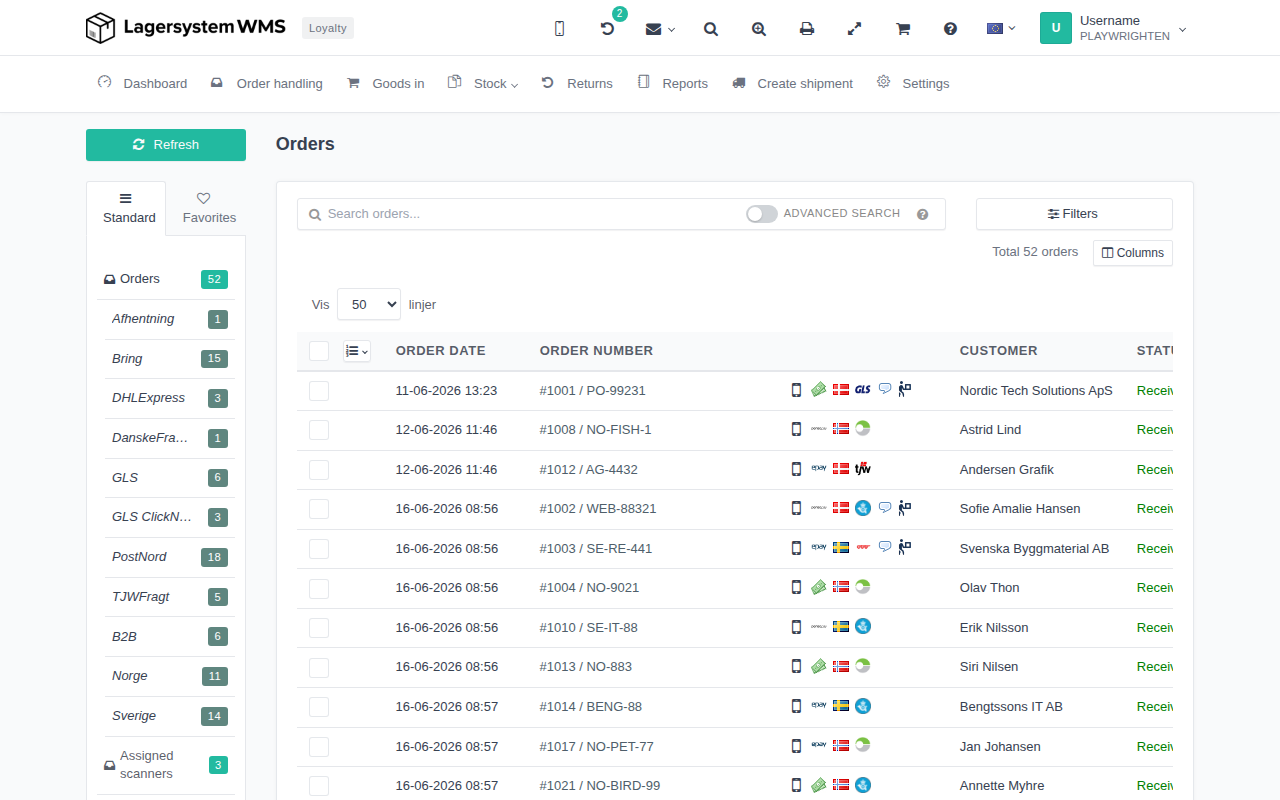
Choose and rearrange columns
The Choose columns window shows all available columns. Tick the columns you want to see, and clear the checkbox for those you want to hide. Drag the handle (the icon to the left of each row) to change the order — the order in the list is the order the columns will have in the table.
Some columns, e.g. Selection (the column with checkboxes for selecting multiple rows), are locked: the checkbox appears grayed out and cannot be cleared, but the column can still be moved to a different position.
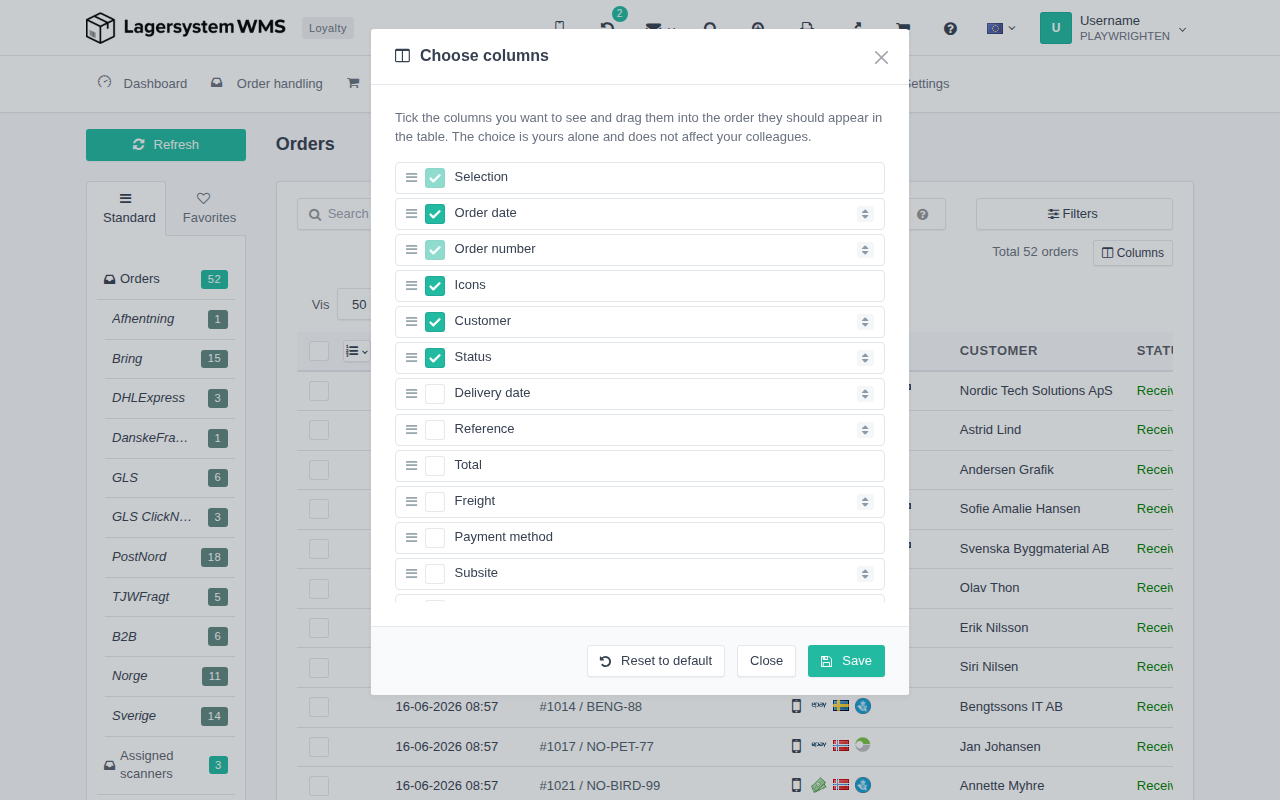
Once you are satisfied with your selection, click Save. The page reloads so the table shows the selected columns in the new order.
Click Reset to default to restore the default column setup — you must confirm the action before it is carried out. Close closes the window without saving changes.