Flow Builder
Flow Builder is an automation tool where you build your own rules from a trigger, one or more conditions (IF), and the actions (THEN) to be carried out when the conditions are met. A flow always starts from a trigger, tests any conditions, and then runs its actions. If multiple flows share the same trigger, the flow with the highest priority runs first.
Finding Flow Builder
- Go to Settings in the top menu, and select Flow Builder.
List of flows
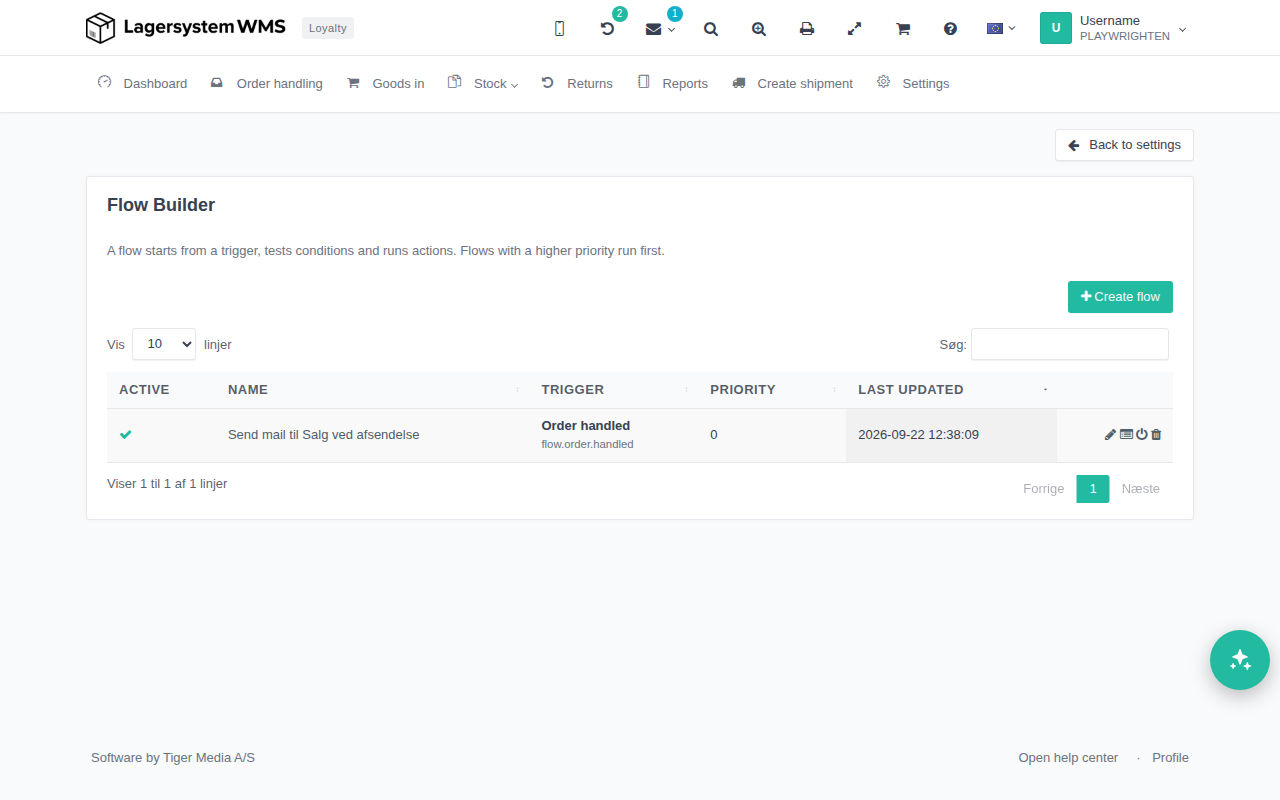
The page shows all created flows in a table with the columns Active, Name, Trigger, Priority, and Last updated. If there are no flows yet, the table shows "No matching records found".
Click Create flow to create a new flow. From the list, you can go back to settings via Back to settings.
When flows exist, each row also shows icons for editing, viewing the execution log, activating/deactivating, and deleting the flow.
Create or edit a flow
When you create or open a flow, the page is organized into two tabs: General and Flow. If the flow has already run at least once, it also gets a tab with an execution log (see below). Changes are saved with the Save button in the top right, and you get back to the list via Back to flows.
The "General" tab
Here you fill in the flow's basic data:
- Name – the flow's name (required).
- Description – a free-text description of what the flow does.
- Priority – a number that determines the order if multiple flows share the same trigger; the flow with the highest priority runs first.
- Active – a checkbox that turns the flow on or off.
The "Flow" tab: trigger, conditions, and actions
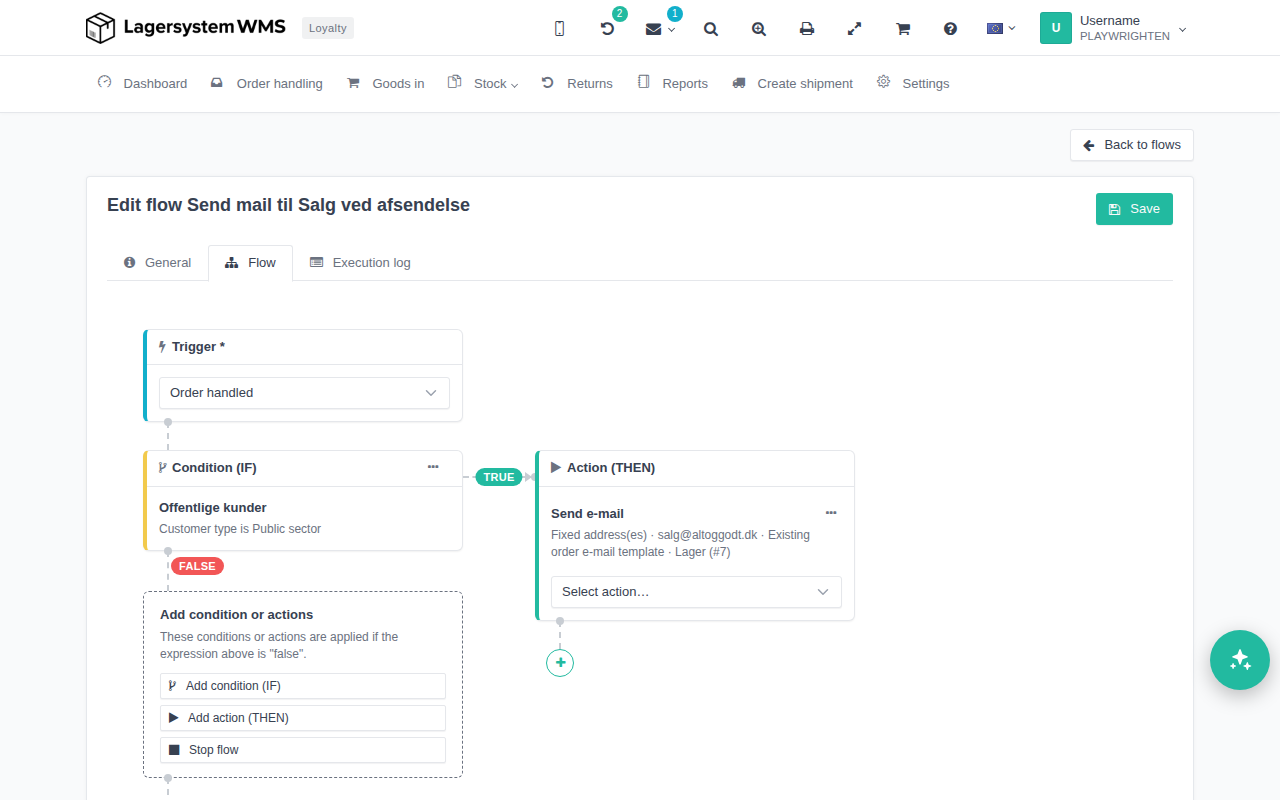
In the Flow tab, you build the automation itself visually as a flow diagram:
- At the top, you select the flow's trigger in a dropdown – this is the event in the system (e.g. that an order is received, or that a label is booked) that starts the flow. If you change the trigger and the existing conditions or actions don't match the new trigger, you'll be warned that they will be removed.
- Below the trigger, you can add steps one at a time: a condition (IF), an action (THEN), or a step that stops the flow. If a branch is empty, it shows a box with suggestions for adding a condition or an action.
- A condition branches the flow into two paths, marked TRUE and FALSE – the actions or additional conditions you place in each branch are only carried out if the condition is or isn't met, respectively.
- Actions that follow directly after each other in the same path are grouped into one box, and you can add more by selecting a new action in its dropdown.
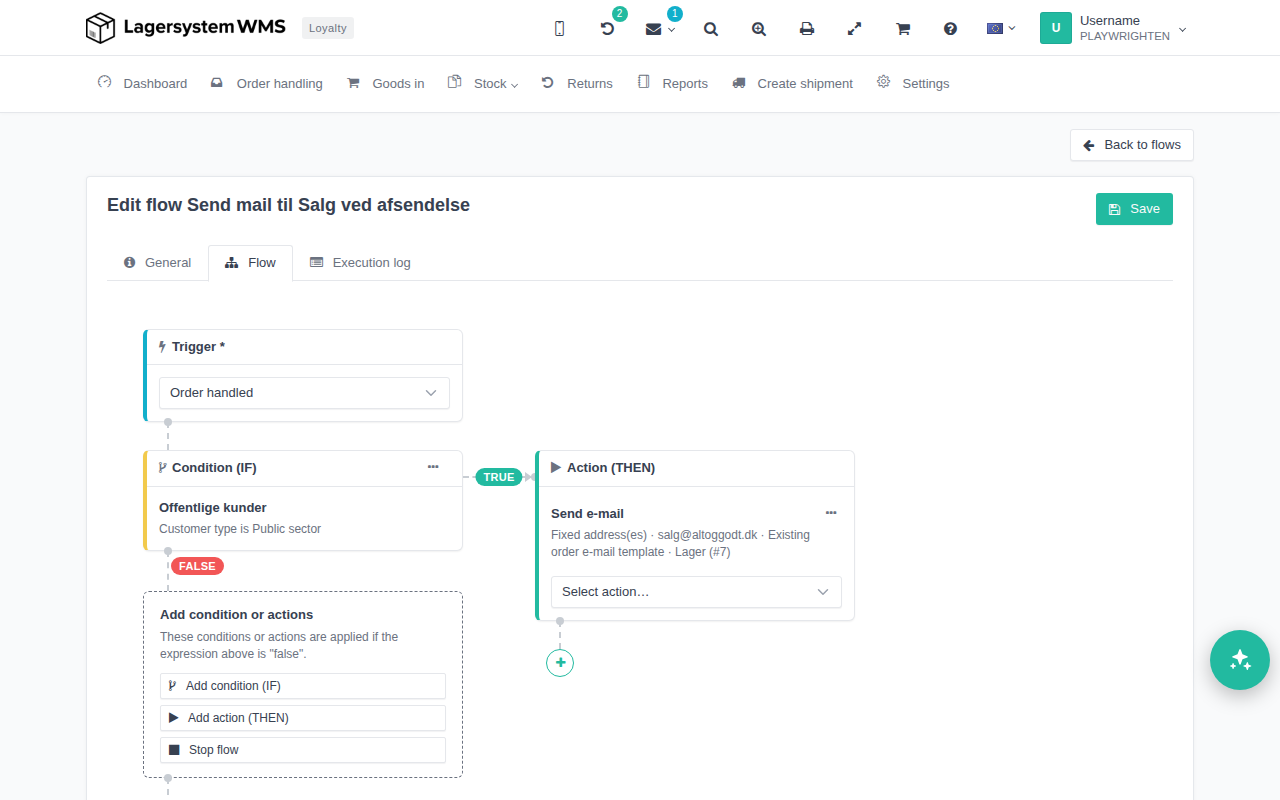
Click on the name of a condition or action in the diagram to edit it, or use the three dots on the box to edit or delete it.
Editing a condition takes place in a window with a name field and two tabs:
- Conditions – here you build the rule from field, operator, and value. You can add more "AND" conditions within the same group with Add AND condition, add a new group with Add OR condition, or clear everything with Clear all conditions.
- Script – an advanced option where the condition is written as JavaScript that returns true or false. The script runs in the same sandbox as Rule Engine and has access to the trigger, the payload, and (for order triggers) the order itself.
In both cases, you can use Test condition to test the condition against a specific order before saving.
Editing an action takes place in a similar window, where you first select Action in a dropdown, after which the fields for the selected action are shown.
Execution log
If the flow has already run, it gets an extra tab with an execution log. It shows all runs of the flow from the last 30 days, newest first: when the flow was triggered, on what, which branch and which actions ran, and how the run ended.