Two-factor authentication for users
Two-factor authentication (2FA) adds an extra security step on top of login, so that in addition to a username and password, a user must also confirm the login with a code from an authenticator app on their phone.
Find the users overview
- Go to Settings and select Users.
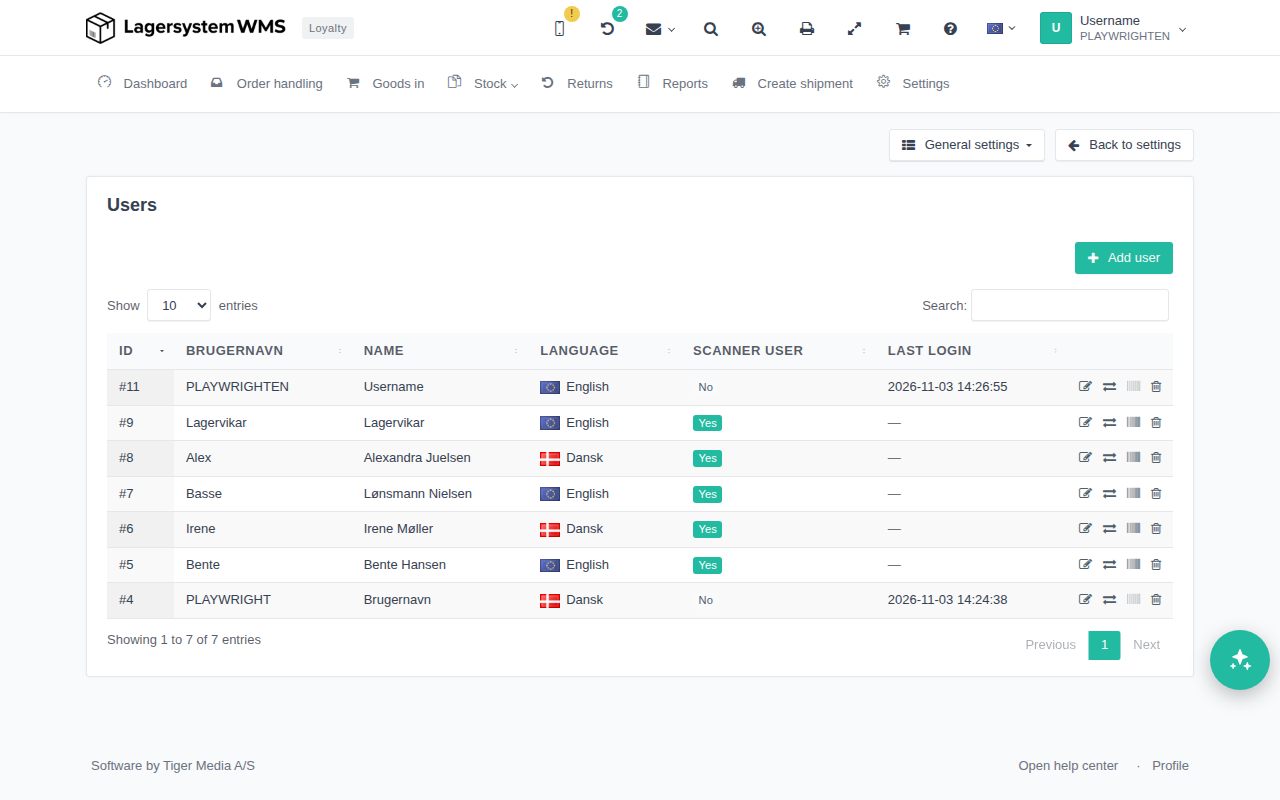
Here you can see all users on the installation, with ID, username, name, language, whether they are a scanner user, and last login.
Permission to edit users
To be able to click the edit icon next to a user in the user list and open the edit window — where two-factor authentication is set up — your user must have permission to access settings. If your user doesn't have this permission, you can't edit users and therefore can't enable two-factor authentication for yourself either.
Enable two-factor authentication
Two-factor authentication is set up by the user themselves by editing their own user. Click the edit icon (the pencil) next to your own user in the user list to open the edit window.
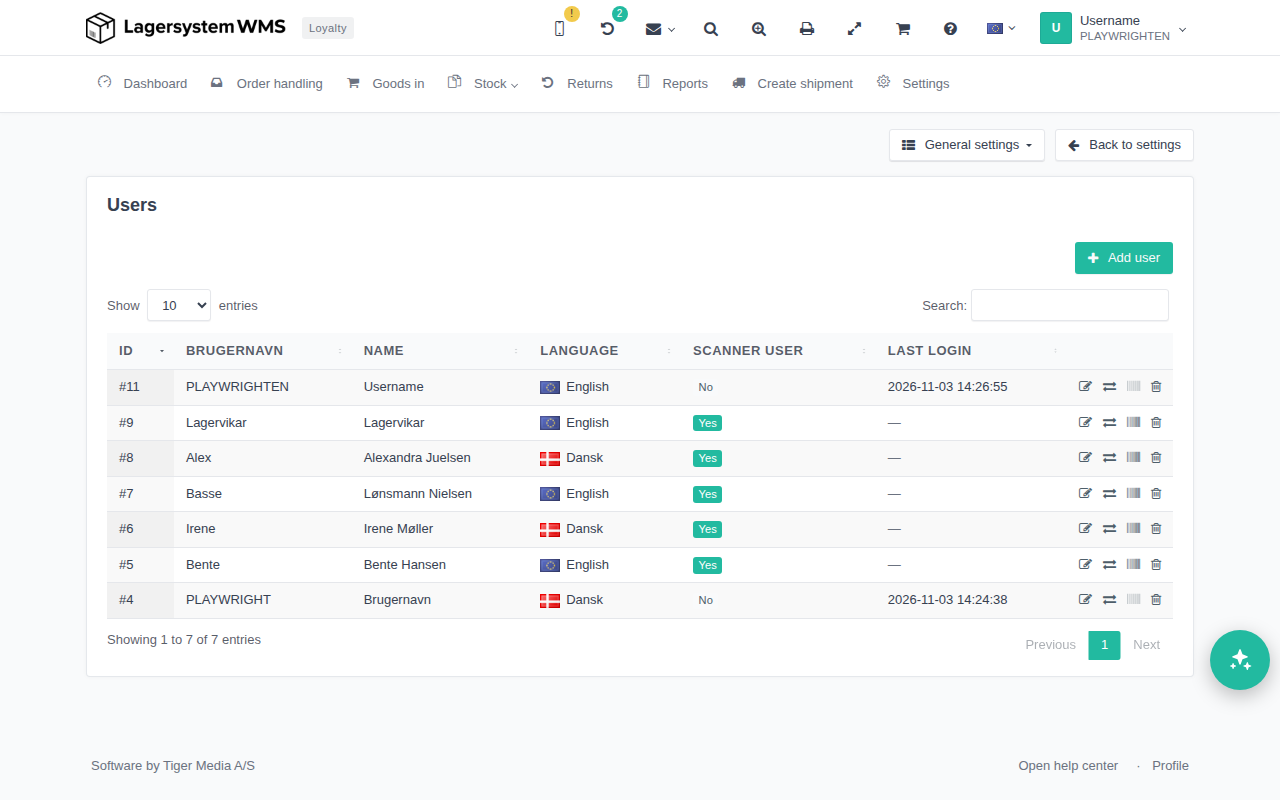
As long as two-factor authentication has not yet been enabled for your user, the window shows a QR code that you can scan with an authenticator app.
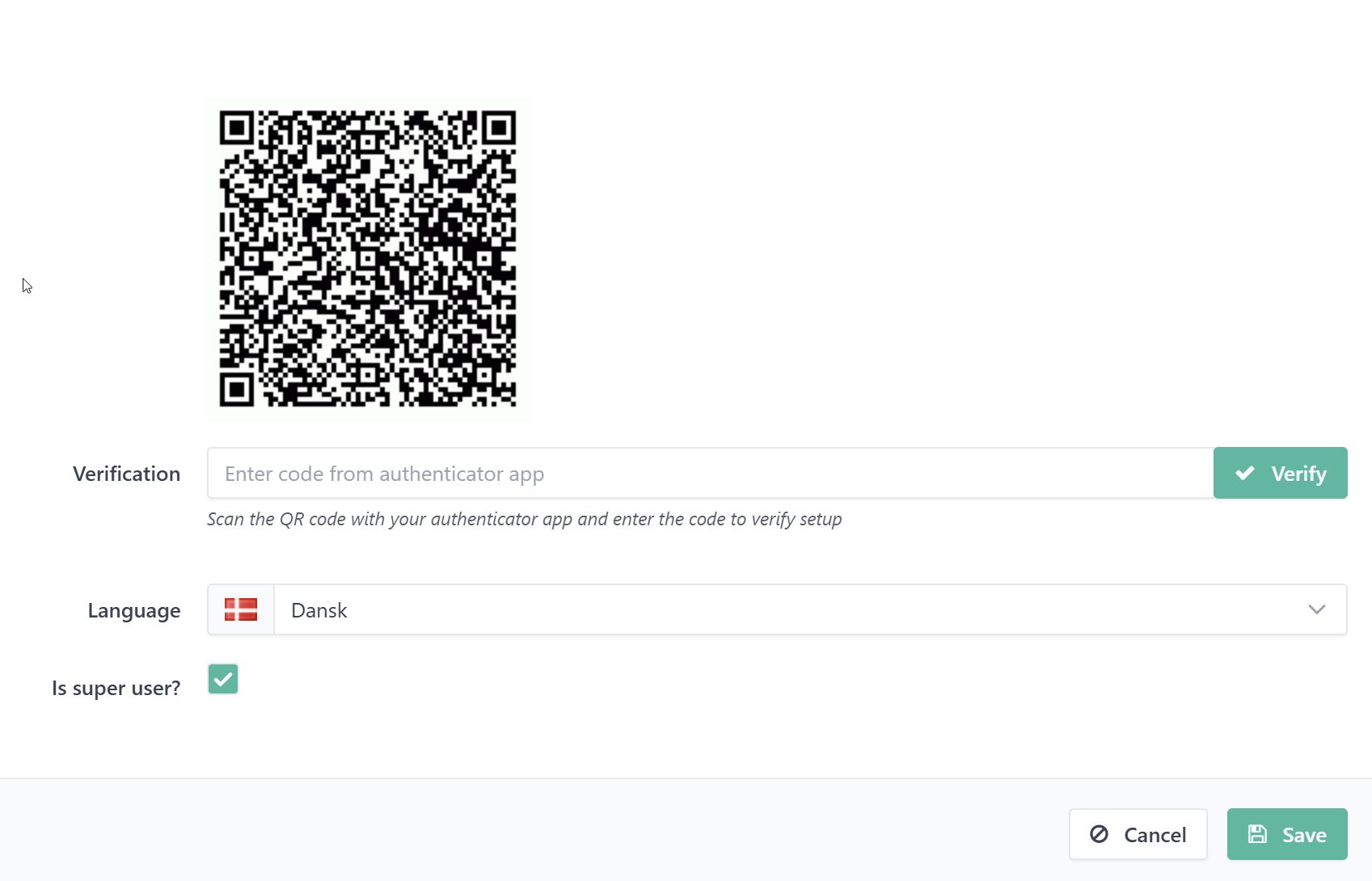
Scan the QR code with the authenticator app, and enter the code the app shows to verify and enable two-factor authentication. From then on, the code from the authenticator app must be used for future logins for that user.
The setup QR code is only shown when you edit your own user — not when you edit other users' profiles.