Packaging report
The packaging report shows the packaging weight the company has put on the market in a given period, based on delivered orders and registered transport packaging. Business/private is decided by whether the order carries a company or EAN number.
To use the packaging report, you need to have set up packaging on your products and/or product categories. See how in the article on packaging declarations.
Finding the report
- Go to Reports.
- Open Packaging report.
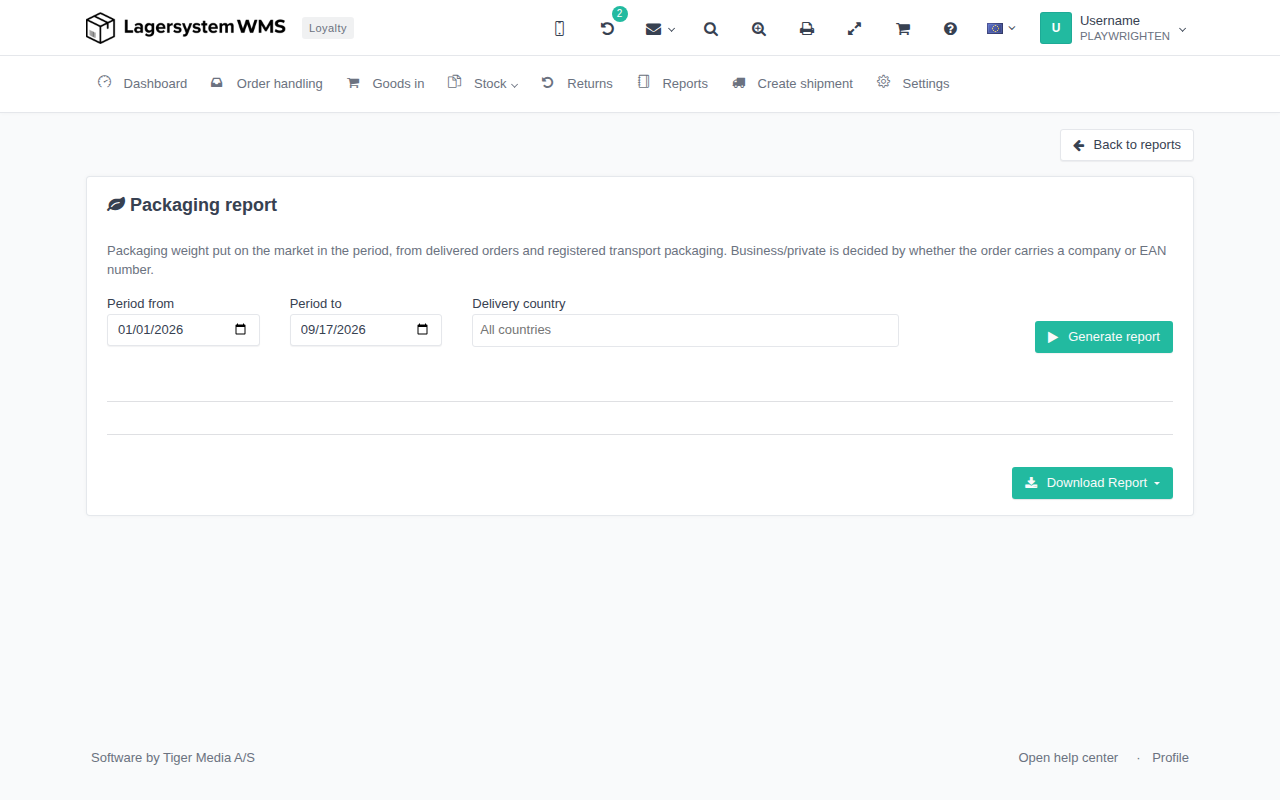
The Back to reports button at the top right takes you back to the report overview.
The packaging report is only available if your subscription plan includes packaging declarations. If it doesn't, you'll see information about this instead of the filters.
Choose period and country
Before the report can be generated, you need to set:
- Period from and Period to — the date range the report should cover. By default, the fields are filled in with January 1 of the current year and today's date.
- Delivery country — limit the report to one or more delivery countries. The field is empty by default, which corresponds to all countries.
Then click Generate report to fetch the figures for the selected period. Nothing is calculated until you click the button.
Report contents
Once the report has been generated, the figures are shown split into Business and Private. For each segment you see:
- The total declared packaging weight for the segment.
- A breakdown by packaging type and, below that, by material, with single-use and reusable packaging shown separately along with a combined weight.
The packaging weight is calculated partly from goods delivered on orders in the period (only regular pick orders), and partly from transport packaging registered on orders in the period.
Below the segments, goods and transport packaging used in the period but not yet assigned a registered packaging declaration are listed. These are not included in the declared totals above, so you can see whether the report is complete, or whether declarations are missing.
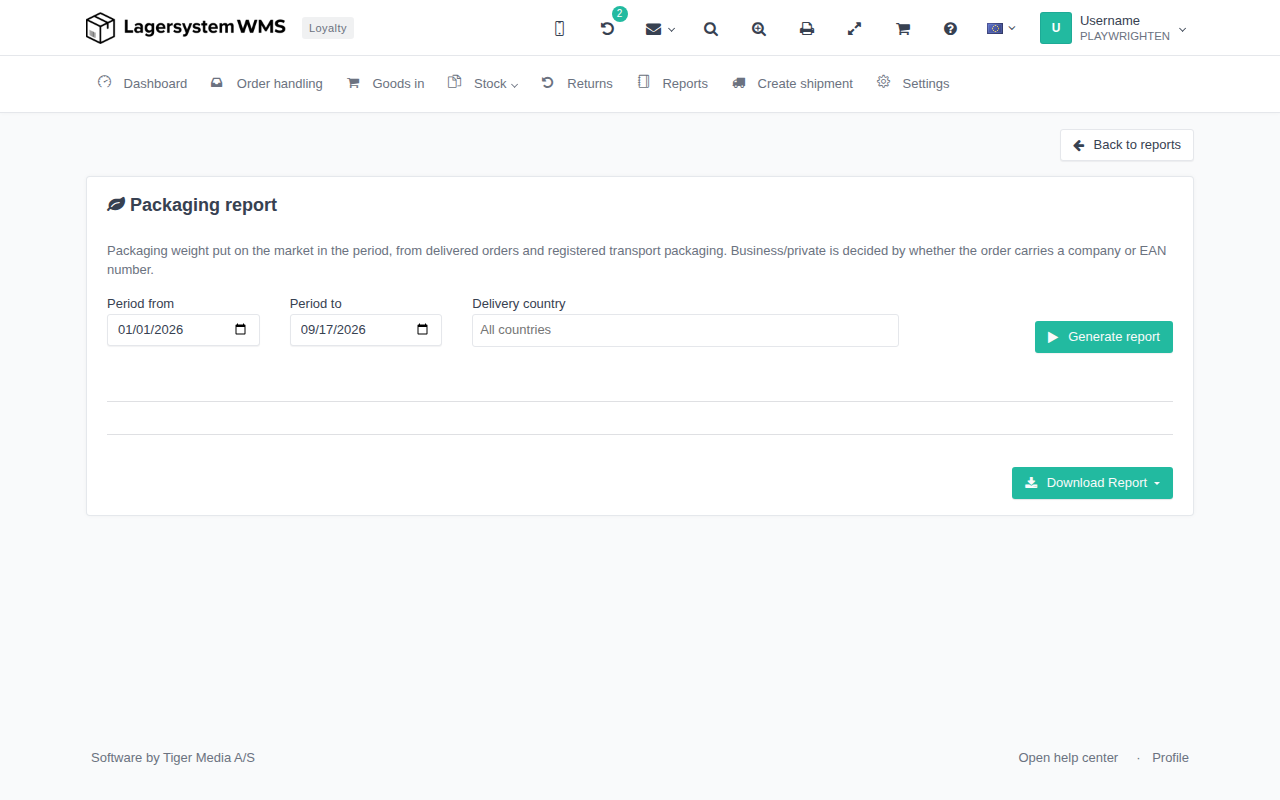
Download report
Click Download Report to export the figures. You can choose between:
- Excel (xlsx)
- CSV, with figures formatted for either Danish or English number format
For each format you can also choose between a summarized report (weight per segment, packaging type, and material) and a detailed report (each individual delivered order line and each registered transport packaging behind the figures). The download uses the filters you've set in Period from, Period to, and Delivery country — you don't need to have clicked Generate report first.