Handterminal popups at order import
It is possible to configure popups on the handterminal at order import. A number of predefined popup options have been created, but it is also possible to configure your own popup rules via the rule engine.
How to enable popups
Go to Settings, and then Handterminal popups under Scanner settings.
Overview of popups
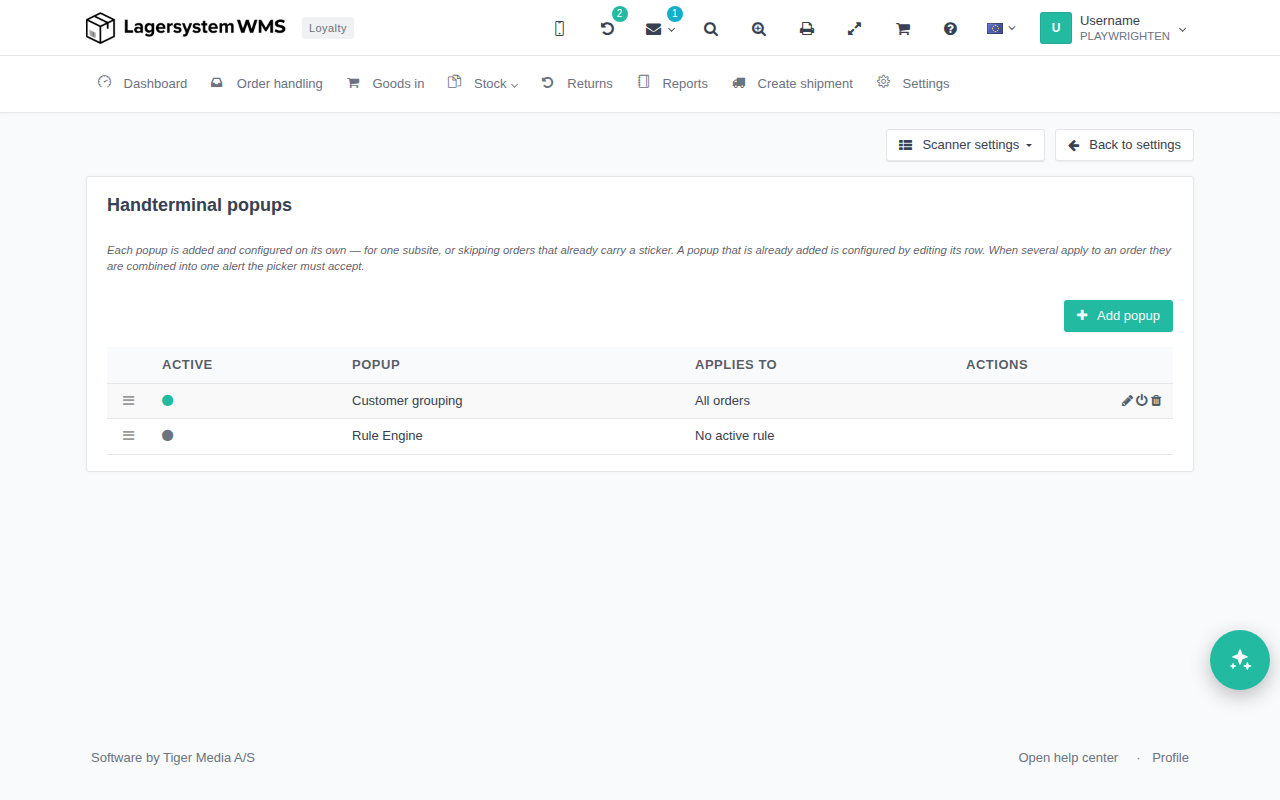
Each row in the table is one configured popup with these columns:
- Active — a green dot means the popup is active; a grey dot means it is inactive.
- Popup — the popup's name.
- Applies to — a short summary of what the popup applies to, e.g. "All orders" or a note about the subsites/stickers it is limited to.
- Actions — the actions available for that row.
On the left side of the table you can change the order by dragging the three horizontal lines; the order set here is the order the popups are shown in when several apply to the same order.
If a popup was created via the rule engine, it will appear on the list, but it cannot be edited from here. It must be activated and edited from the rule engine.
Add a popup
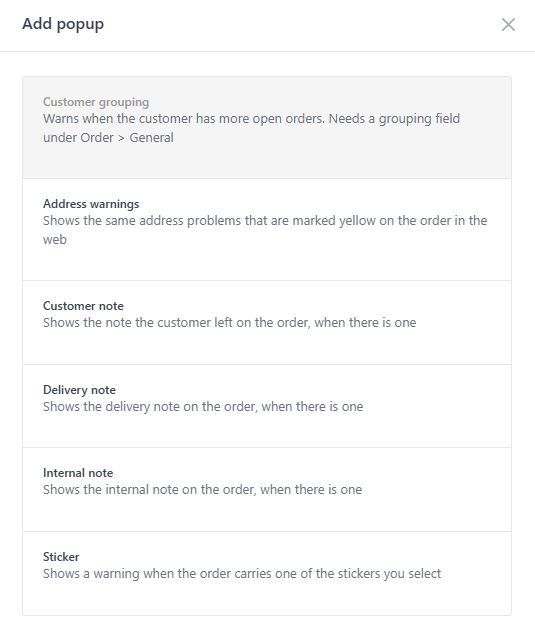
Click Add popup to open a dialog with a list of the popup types that have not yet been configured. Popup types that already have a row in the table are shown as unavailable, since an existing popup is changed by editing its row instead of being added again. Selecting a type opens its settings form, where you can configure it and save to add it to the list.
Edit a popup
Click the pencil icon on a row to reopen its settings form with the current configuration, make your changes, and save.
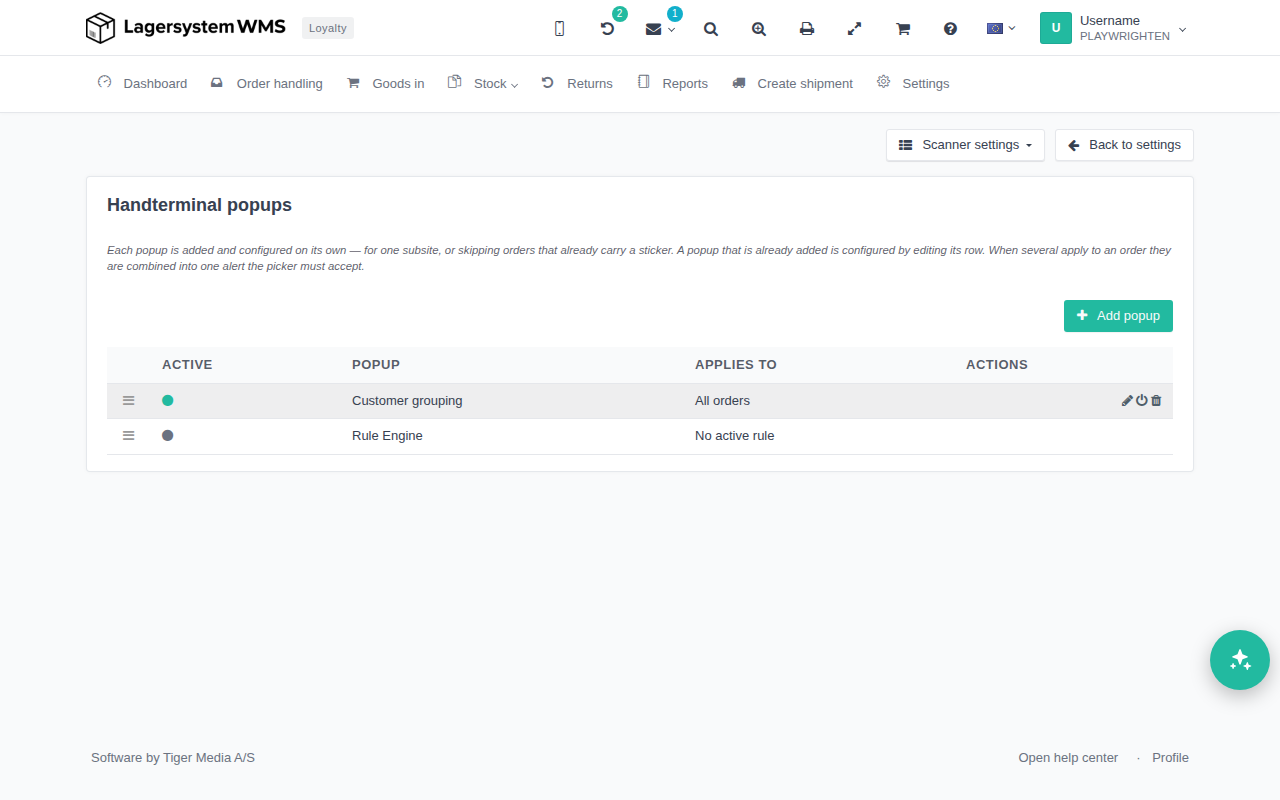
Use the on/off icon to turn a popup on or off without losing its configuration, and the trash can icon to remove it entirely.