Custom questions
Custom questions let the warehouse write its own question groups and have staff answer them at a specific point in order handling — on the web and on the scanner. A group is shown as one combined form, and the answers are saved on the order.
- Click Settings in the top menu.
- Select Custom questions.
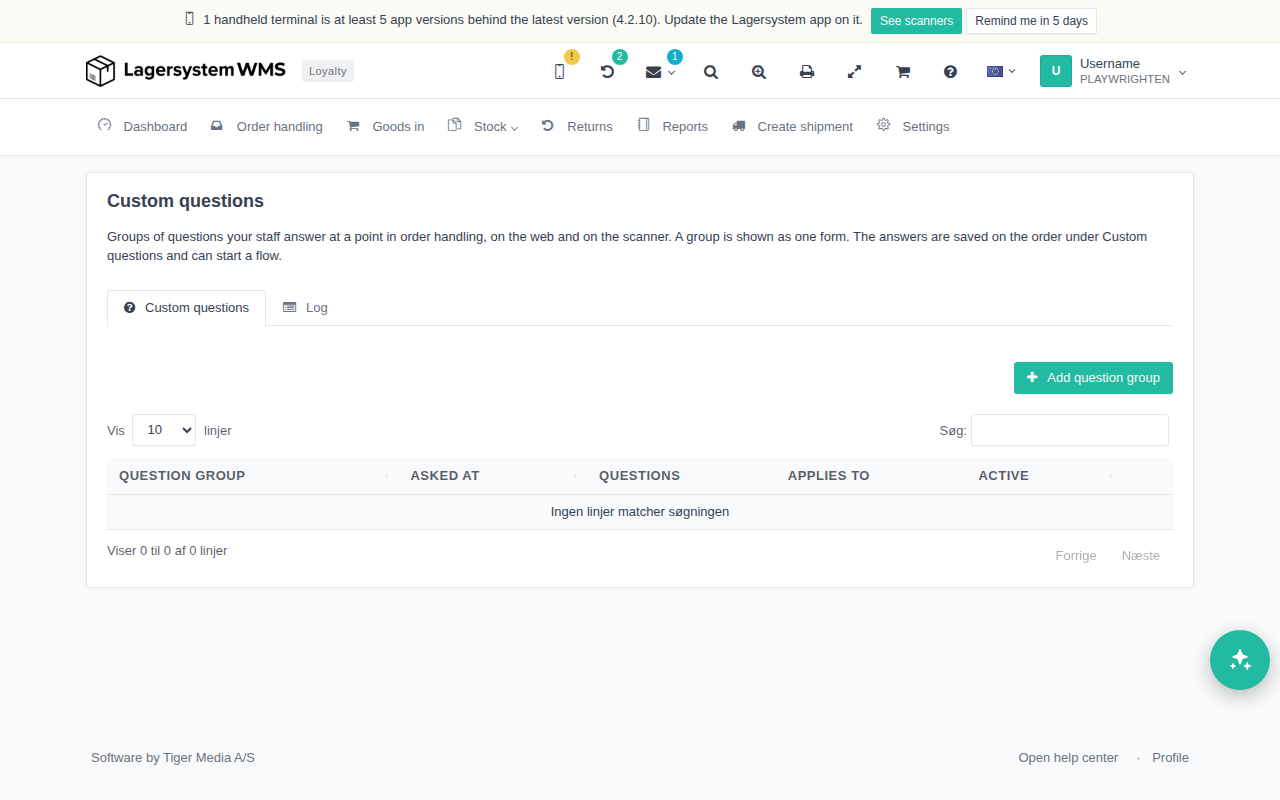
The Custom questions tab shows a table of the created question groups with the columns:
- Question group — the group's name.
- Asked at — the point in order handling where the group is asked.
- Questions — the questions the group contains; a question marked as required is shown with a red asterisk.
- Applies to — which subsites and any tags the group is limited to.
- Active — whether the group is switched on.
Next to each group you can edit it, switch it on or off, and delete it again.
The Log tab shows the history of changes to the setup of question groups.
Create a question group
Click Add question group to open the form.
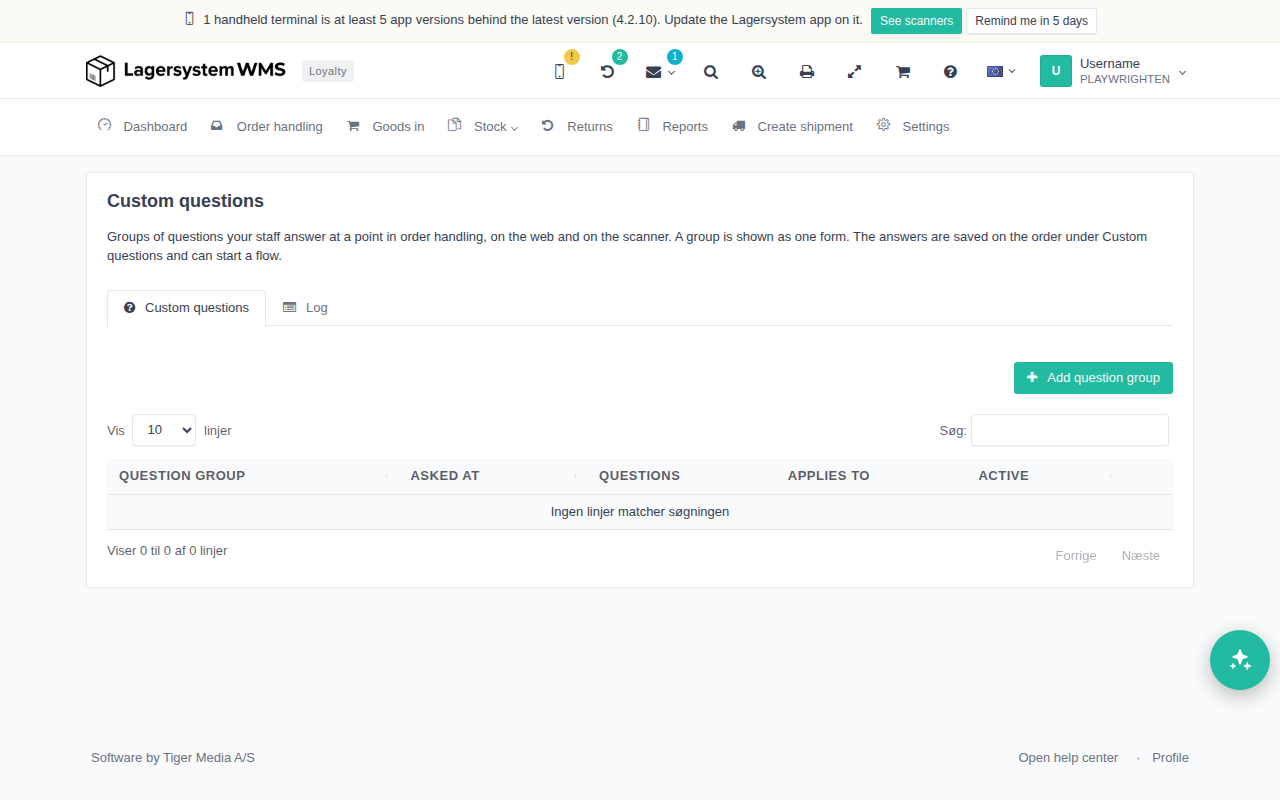
- Name — shown as the heading of the form when the questions are asked.
- Asked at — the step in order handling where the group should be asked. You can choose between handling the order (Handle), partial handling, picking, and label generation.
- Subsites — which subsites the group applies to. If the field is set to All subsites, the group applies to all subsites.
- Except these subsites — subsites to exclude, even if they would otherwise be covered by the Subsites field.
- Only orders with one of these tags — limits the group to orders with one of the specified tags. The field can be left empty, in which case all orders are asked regardless of tag.
Under Questions, the actual questions in the group are added. Click Add question to add another row.
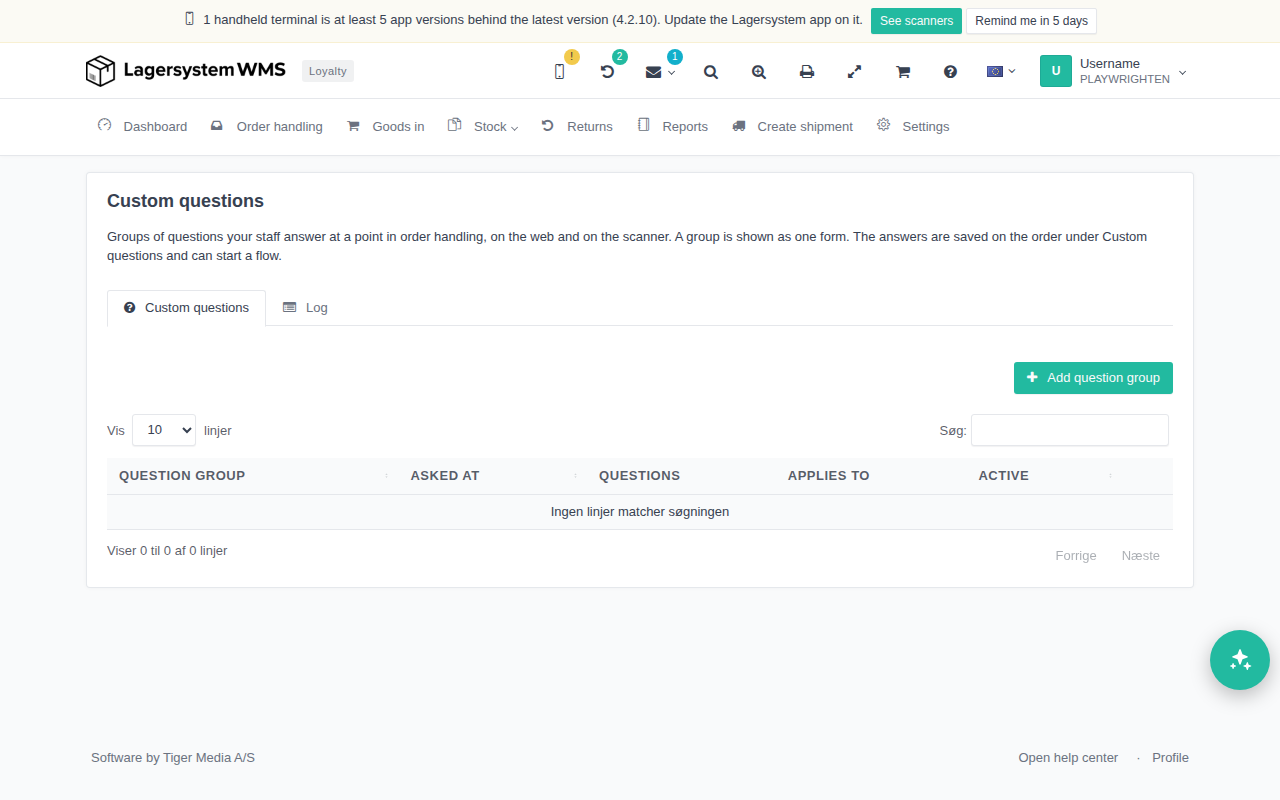
Each question row has:
- A text field for the actual Question text.
- A type selector (default Text) that determines how the field is answered: free text, number, a list of options, a yes/no question, or a longer free text. If the type with options is selected, an extra field is shown where each option is entered on its own line.
- The Must be answered checkbox, which makes the question required.
- Arrows to move the row up or down, and a drag handle so the order can be changed by dragging the row. The order is the order in which the questions are asked.
- A cross to remove the row again.
A group cannot be saved without at least one question, and a question with options cannot be saved without at least one option specified. Click Save to save the group, or Cancel to close without saving.
How the questions are asked
When an action reaches the chosen point — handling, partial handling, picking, or label generation — all the question groups that apply to the order are shown together in one form, before the action is completed. This happens both on the web and on the scanner. If a question is marked as Must be answered, the form cannot be saved until it has been answered. If the form is cancelled, the action it was tied to is not completed.
Answers on the order
The answers to an order's questions are saved on the order under the Custom questions tab. Here, each answered form is shown separately, newest first, with information about who answered, whether it happened on the web or via the scanner, and at which step the form was asked, followed by a table with the questions that were included and the answers that were given. If no questions have been answered yet for the order, this is shown instead.