Fulfilment process on the order
When an order is handled, packed, and shipped, the system shows the entire process visually, run by run. The order view keeps track of the history for each handling of that order and lets you reopen any of them to see exactly which steps were run, and what each of them did.
Opening the fulfilment history
- Open the order in Order view.
- Select the Fulfilment tab, which shows the order's handlings.
The run history
The tab shows a table with each saved handling for the order, with one row per run:
- Timestamp — when the run took place.
- Completed actions — the actions the run completed.
- User — who triggered the run.
Each row has an action to open the full detail view for the run.

Viewing a run's steps
If you open a run from the history table, the run's steps are shown in a dialog — the same visualization the operator sees live while a batch is being handled, but played back from what was saved for that run.
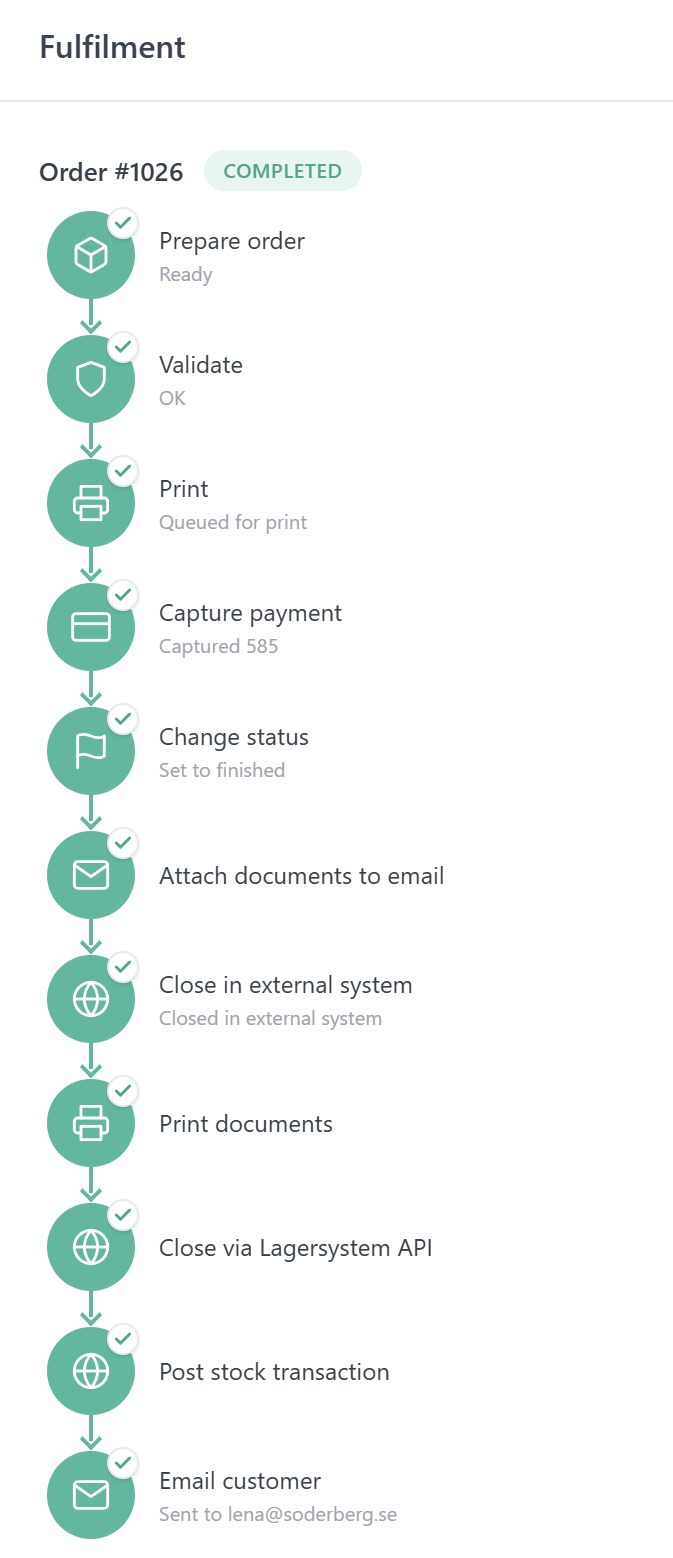
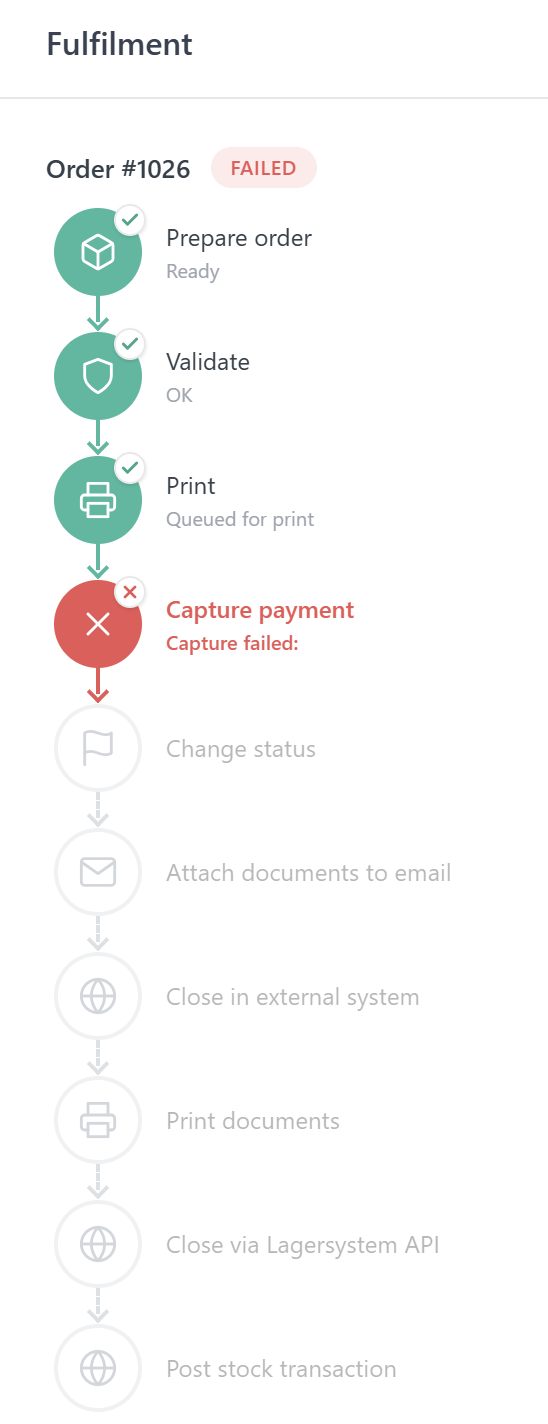
If a handling encounters an error along the way, the dialog clearly shows where the run stopped: the step that failed is marked, while the remaining steps are shown dimmed to indicate that they were not carried out.
Order line movements linked to a run
Order line movements that are written while a handling is in progress are tagged with that run. This means the stock movements that an order handling causes can be traced back to the specific handling that produced them, instead of only to the order as a whole.