Line movements tab on the order view
The Line movements tab on an order's detail page shows the full movement history for the order: every time a line has been picked, parked, delivered, or otherwise adjusted, along with who did it and when. It's a read-only log trail — there's nothing to edit here.
Opening the tab
- Open the order (
/order/<order-id>). - Click the Line movements tab.
What the table shows
Each row is one movement recorded on one order line, with columns for:
- Line — the order line the movement belongs to (and its item number).
- Date — when the movement took place.
- State — which step in the process the movement affects:
PICKED,PARKED, orDELIVERED. - Movement type — the type of movement (e.g. picking, cancellation of a pick, parking, unparking, delivery, a conflict reversal, an ERP import, an automatic delivery, or a manual adjustment).
- Capture source — where the movement was recorded from.
- Amount — the quantity change for that particular movement. A reversal (a negative amount) is shown in a muted, italic style, so it stands out from the normal flow.
- Batch / Serial no. — the batch or serial number involved, if relevant.
- Location — the physical picking location, if relevant. This column is only shown for warehouses that track physical storage locations.
- Source — whether the data was entered, derived, flagged as a discrepancy, or generated by the system.
- Scanner version — the version of the scanner app that recorded the movement, if it originated from a scan.
- User — who performed the movement.
- Session — the scanning session the movement was part of, if any.
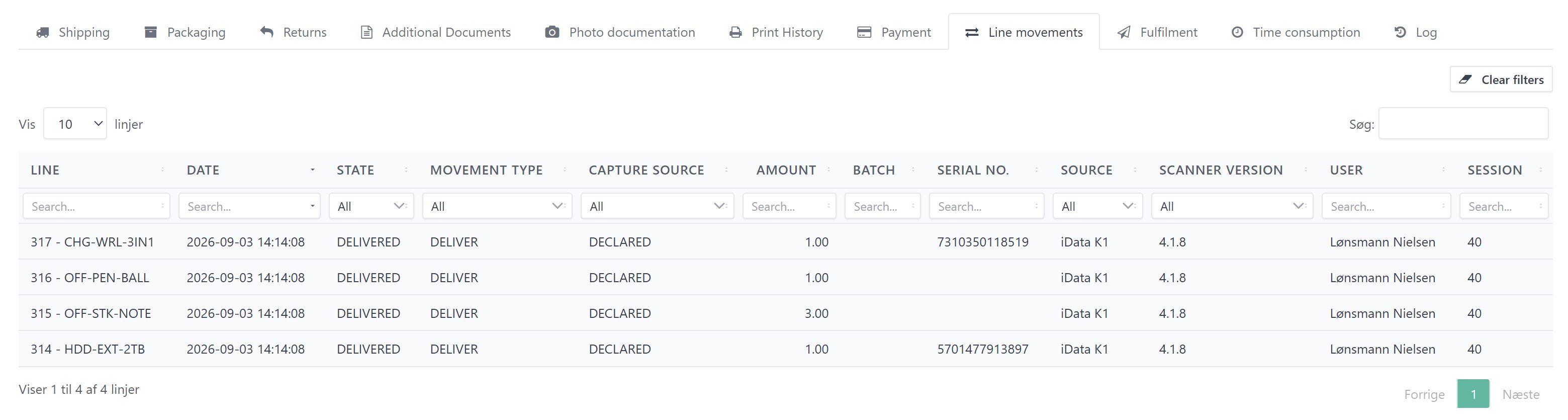
By default, the table is sorted with the newest movement at the top.
Jumping in from an order line
Further up in the order view, the order lines have an arrow icon that jumps directly to
the Line movements tab, scrolls it into view, and pre-filters the table to that specific
line, so you can see its full journey PICKED → PARKED → DELIVERED.
Filtering
Each column has its own filter directly under the header row. Columns with a fixed set of values — State, Movement type, and Capture source — use a dropdown; the rest are free-text search fields. The line filter, which is preset when you jump in from an order line, can be cleared like any other filter, which then shows the movement history for the entire order instead of just that line.
Use Clear filters to reset all column filters at once.